DaVinci Resolve 21 AI features explained
Version 21 adds a focused Studio AI toolset. The useful question is not which button looks impressive, but what evidence proves each result belongs in the edit.
Short answer
Short answer
DaVinci Resolve Studio 21 adds AI IntelliSearch, Speech Generator, CineFocus, Face Age Transformer, Face Reshaper, Blemish Removal, Slate Finder and Slate ID, UltraSharpen, and Motion Deblur. These tools cover media discovery, generated speech, synthetic focus, facial treatment, metadata extraction, sharpening, and motion-blur repair. Blackmagic Design's final-release notes place the new AI toolset in DaVinci Resolve Studio 21; DaVinci Resolve Free 21 receives the Photo page and other non-AI workflow improvements but not these new Studio AI tools. Treat every output as a proposal: verify identity and metadata, compare against the source, inspect motion at normal speed, and review a real render before approval.
The new version 21 AI toolset requires Studio
Blackmagic Design's final DaVinci Resolve 21 release notes separate the editions. The Free release adds the Photo page, Fairlight folders, keyframing improvements, MultiMaster trim passes, and layer-list node graphs. The Studio release adds those changes plus the new AI tools, naming IntelliSearch, CineFocus, and facial refinement as examples.
| Version 21 capability | DaVinci Resolve Free 21 | DaVinci Resolve Studio 21 |
|---|---|---|
| New Photo page for still images | Included | Included |
| Fairlight folders and listed workflow improvements | Included | Included |
| New version 21 AI tools described in this guide | Not included | Included |
| DaVinci AI Neural Engine and broader Studio AI feature set | Not included as the Studio feature set | Included |
Do not infer availability from a shared interface screenshot. Confirm that the application identifies itself as DaVinci Resolve Studio 21 and that the required model, effect, or menu item is present on the workstation. IntelliSearch, for example, also requires an AI model downloaded through the Extras Download Manager before media analysis can begin.
Choose the tool from the failure you need to solve
| Feature | Use it for | Primary review |
|---|---|---|
| AI IntelliSearch | Finding clips or relevant segments by visible content, faces, dialogue, and metadata | Open every candidate and confirm the person, object, action, line, and usable surrounding frames |
| AI Speech Generator | Creating a spoken draft from written text with a supplied voice model or permitted sample | Check wording, pronunciation, identity permission, performance, sync, and disclosure requirements |
| AI CineFocus | Creating a synthetic focal plane, defocus, and bokeh treatment | Inspect subject edges, hair, transparent objects, depth transitions, and focus changes through motion |
| AI Face Age Transformer | Aging or de-aging a tracked face | Check identity, temporal consistency, skin texture, expression, profile angles, and shot-to-shot continuity |
| AI Face Reshaper | Making controlled adjustments to facial proportions | Keep adjustments minimal; inspect natural anatomy, expression, motion, identity, and approval |
| AI Blemish Removal | Reducing selected skin blemishes while retaining useful texture | Check texture, pores, highlights, makeup, motion, and consistency with adjacent shots |
| AI Slate Finder and AI Slate ID | Finding clapperboards and extracting scene, take, angle, shoot-day, and related metadata | Compare every populated field with the visible slate and production records before batch use |
| AI UltraSharpen | Sharpening moving images or reducing a slight focus error | View at delivery resolution for halos, noise, texture, edge shimmer, and inconsistency between shots |
| AI Motion Deblur | Reducing motion-blur streaks and softness through a generated render | Inspect moving edges, repeated texture, hands, faces, fine detail, slow motion, and freeze frames |
Use IntelliSearch and Slate ID as discovery tools
AI IntelliSearch can analyze Media Pool clips and search visual content, faces, transcript text, and metadata. Results can appear as whole clips or relevant segments. This makes it useful for questions such as “find the red pickup arriving at night” or “find the sentence about the warranty,” but a match is an index result, not an approved shot.
- Limit AI Clip Analysis to the intended bins or selected clips when the project is large.
- Choose the analysis model and options needed for visual search, faces, slate data, transcription, or audio classification.
- Search with a concrete object, person, action, color, camera identifier, or exact spoken phrase.
- Open each match and audition enough head and tail to judge performance, continuity, focus, and sound.
- Save approved ranges or a reviewed Smart Bin; do not turn raw matches directly into a final assembly.
Slate Finder and Slate ID solve a narrower assistant-editing problem. Slate Finder marks the clapper position; Slate ID reads fields such as scene, take, angle, and shoot day. Poor handwriting, partial framing, darkness, and inconsistent slate practice can still create plausible errors. Compare extracted values with the frame and the camera report before renaming, grouping, or syncing a batch.
Treat generated speech and face changes as identity work
AI Speech Generator converts written text into spoken output using Blackmagic voice models or a sample supplied by the user. The version 21 guide recommends short sentences or paragraphs because longer input can drift. Build a short scratch performance first, then verify every word, name, number, pronunciation, pace, inflection, and edit point.
A technically clean voice is not permission to imitate someone. Confirm that the production is authorized to use the chosen voice or sample and decide how generated material will be labeled. Keep the original recording, script, generated take, model choice, and approval together in the handoff.
Face Age Transformer, Face Reshaper, and Blemish Removal also change a person's appearance. Blackmagic Design explicitly warns that Face Reshaper is best used minimally because aggressive changes can become unnatural. Test close-ups, profiles, fast turns, occlusion, changing light, and expression. Get the production's approval for the visible change; a stable track does not settle an editorial or consent decision.
Separate creative focus from image repair
AI CineFocus is a depth treatment. It creates a virtual focal plane and lens-style bokeh, so use it when the desired result is selective focus or a new depth-of-field look. AI UltraSharpen and AI Motion Deblur address different defects: fine softness or slight focus error for UltraSharpen, motion streaking and blur for Motion Deblur.
| Visible problem | First candidate | Reason to reject |
|---|---|---|
| The shot needs a different focal emphasis | AI CineFocus | Depth separation breaks around hair, glass, motion, foreground objects, or rack-focus transitions |
| Detail is slightly soft but motion is otherwise natural | AI UltraSharpen | Halos, noise, brittle skin, or shimmering edges become more visible than the original softness |
| Motion produces unwanted streaks or smeared frames | AI Motion Deblur | The generated render invents unstable detail, repeats texture, or damages moving faces and hands |
Compare the processed shot with the untouched source at normal speed, frame by frame at the hardest motion, and at delivery resolution. Then check adjacent shots. A repair can look impressive in isolation and still break continuity because its texture, sharpness, grain, or depth treatment no longer matches the sequence.
Use one protected test before a sequence-wide pass
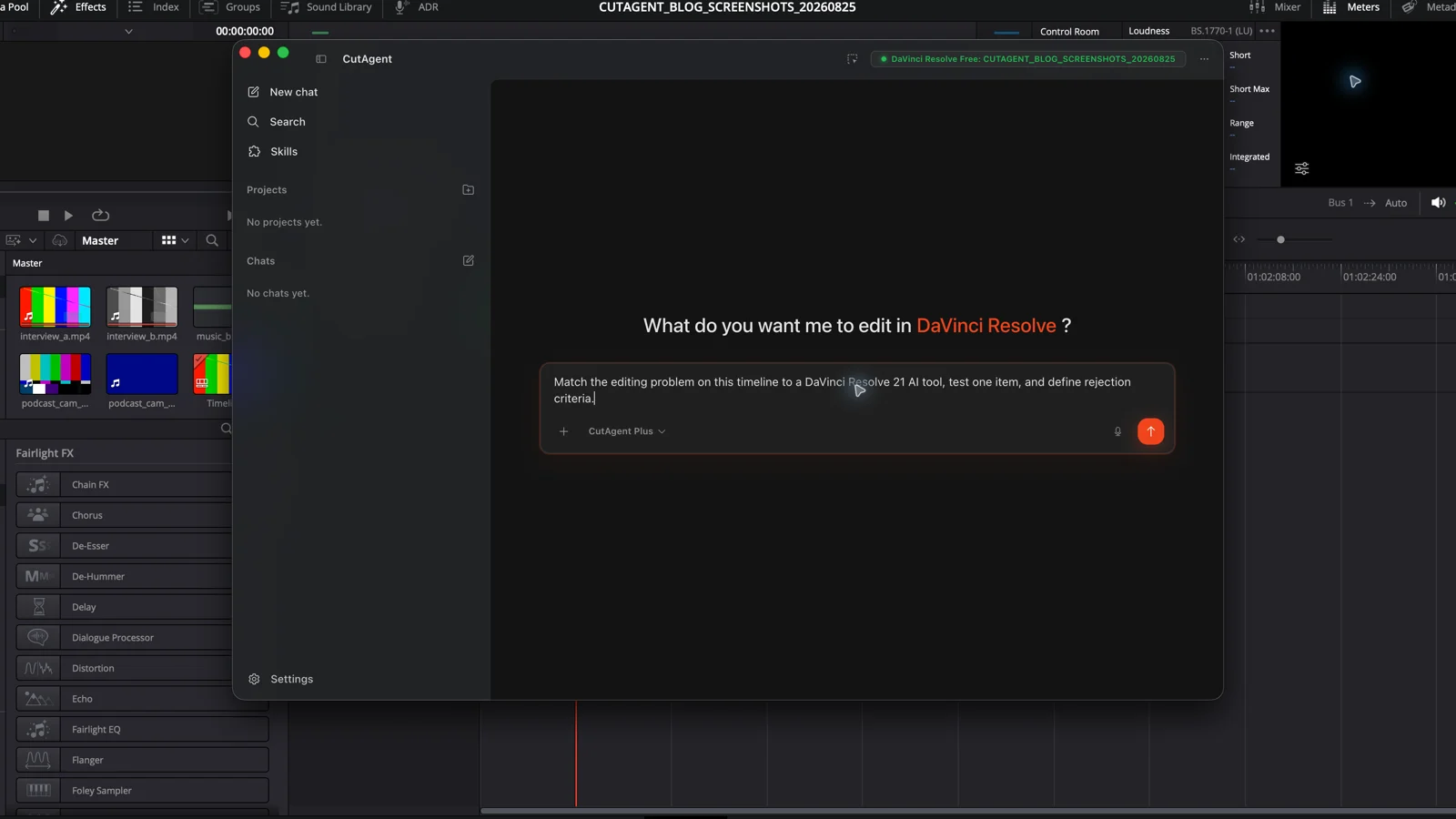
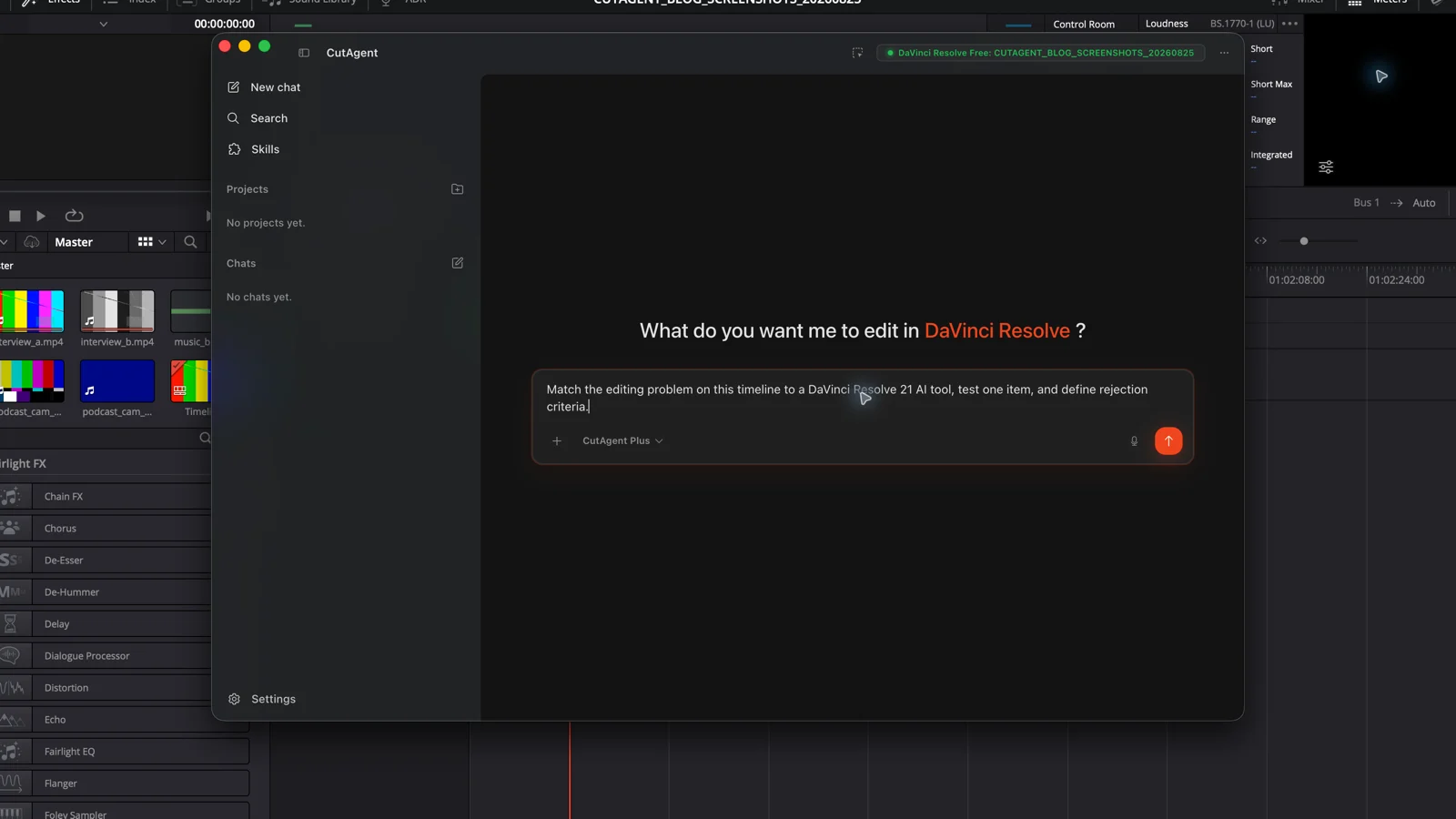
On a duplicate of timeline Product film v08, test AI Motion Deblur on shot A032_C004 only. Preserve the source clip and all existing grades. Use the smallest setting that visibly reduces the streak on the product label. Render the full shot with 12-frame handles. Return the source and test file names, settings, render path, and the exact frames with the fastest hand motion. Do not apply the effect to any other shot until I approve the comparison.
- Name the source problem and the rejection condition before applying the tool.
- Protect the source clip, grade, metadata, or voice recording.
- Test one representative shot, clip, slate, search query, or sentence.
- Inspect the difficult frames or fields and compare with the untouched source.
- Render or export the result in the form that downstream editors or viewers will receive.
- Scale only after the test passes; keep exceptions out of the batch for manual review.
The new tools expand what DaVinci Resolve Studio can propose, locate, synthesize, and repair. They do not share one acceptance test. Search needs identity checks, slate extraction needs metadata checks, speech needs script and authorization checks, and image treatment needs motion and render review. Choose the review evidence with the feature, not after the batch is finished.
Sources and further reading
- DaVinci Resolve 21 What's New - Blackmagic Design. Accessed August 25, 2026.
- DaVinci Resolve 21 New Features Guide - Blackmagic Design. Accessed August 25, 2026.
- DaVinci Resolve 21 and DaVinci Resolve Studio 21 final release notes - Blackmagic Design. Accessed August 25, 2026.
- Blackmagic Design announces DaVinci Resolve 21 - Blackmagic Design. Accessed August 25, 2026.
- DaVinci Resolve Studio 21 features - Blackmagic Design. Accessed August 25, 2026.
- DaVinci Resolve product and DaVinci AI Neural Engine overview - Blackmagic Design. Accessed August 25, 2026.