DaVinci Resolve automation: 9 tasks to automate and 5 to keep manual
The best editing automation removes repeatable setup and cleanup without outsourcing editorial judgment. This guide shows where automation earns trust, where it does not, and how to write safer instructions.
Short answer
Short answer
Automate DaVinci Resolve work when the task is repeatable, its inputs and acceptance criteria are explicit, and the result can be reviewed or reversed. Keep story choices, performance judgment, final color and sound approval, rights decisions, and destructive project changes under direct human control.
The three-part test for a good automation candidate
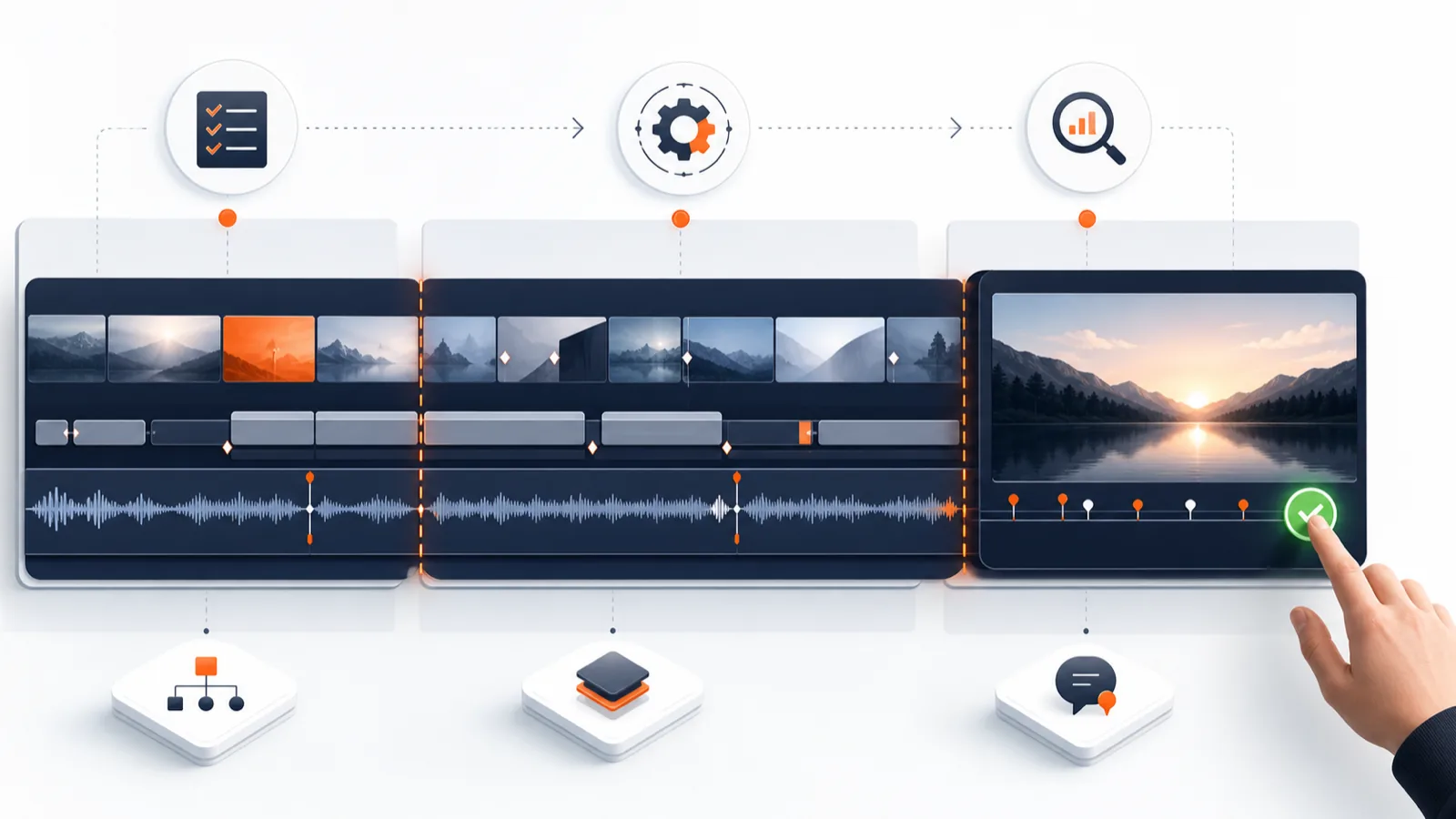
A task is a strong candidate for automation when it is repetitive, specifiable, and reviewable. Repetition creates the time saving. A clear specification prevents the system from guessing. Reviewability lets an editor catch a technically valid result that is wrong for the story.
- Repeatable: the same operation appears across clips, timelines, or deliveries.
- Specifiable: you can name the source material, target, constraints, and finish condition.
- Reviewable: the output can be checked in a duplicate timeline, through markers, or against a measurable checklist before it replaces approved work.
This distinction matters because DaVinci Resolve already includes several kinds of automation. Blackmagic Design documents built-in AI-assisted tools, Python and Lua scripting, Fusion automation, presets, and batch operations. A natural-language layer such as CutAgent adds another way to express and sequence supported work; it does not remove the need to understand the project, edition, or intended result.
Nine DaVinci Resolve tasks worth automating
| Task | Why it fits | Review before approval |
|---|---|---|
| Project and timeline setup | Naming, bins, tracks, frame rate checks, and version copies follow repeatable rules. | Confirm settings, destinations, and the untouched source project. |
| Clip organization and metadata | Consistent names, colors, flags, and metadata reduce search friction. | Spot-check ambiguous clips and preserve camera originals. |
| Transcript and select preparation | Transcription, speaker labels, search terms, and marker creation turn long footage into a navigable first pass. | Check names, technical terms, timecodes, and missing speech. |
| Rough-cut assembly from a brief | A precise duration, source range, must-keep moments, and exclusions create a bounded assembly task. | Review pacing, context, continuity, and every removed claim. |
| Multicam first passes | Sync rules and speaker-led switching can create a starting point for dialogue-heavy material. | Watch the full sequence for eyelines, reaction shots, interruptions, and audio continuity. |
| Caption formatting and cleanup | Style, line length, placement, and timing rules repeat across a program. | Read captions at playback speed and verify names, numbers, and safe-area placement. |
| Baseline audio cleanup | Level targets, fades, channel mapping, and known cleanup steps are measurable. | Listen for clipped words, pumping, room-tone jumps, and altered intent. |
| Repeated titles and graphics | Template-driven text and parameter changes are structured inputs. | Check spelling, brand values, animation timing, and every instance at delivery resolution. |
| Render setup and quality control | Preset selection, naming, destination checks, and preflight lists are deterministic. | Verify codec, color space, audio channels, captions, file path, and a sample of the rendered output. |
These are starting categories, not promises that every operation is available in every DaVinci Resolve edition or automation tool. Blackmagic Design introduced AI IntelliScript, AI Animated Subtitles, AI Multicam SmartSwitch, and AI Audio Assistant in DaVinci Resolve 20, with edition-specific requirements documented in its feature guide. Always check the exact version and edition before designing a workflow.
The best first project is boring on purpose
Start with a low-ambiguity task such as adding review markers, normalizing names, formatting captions, or preparing a duplicate timeline. You will learn how the automation interprets scope and how its output appears in the project without putting an approved cut at risk. Only expand the scope after the small workflow produces consistent evidence.
Five decisions to keep manual
- Final story and performance choices. A pause, glance, or imperfect delivery may be the emotional center of a scene even when it looks inefficient in a transcript.
- Final color and sound approval. Automated baselines can help, but monitoring conditions, creative intent, and delivery context still require trained judgment.
- Rights, consent, and factual approval. A system can flag missing information; it cannot grant permission or decide whether a sensitive claim is appropriate to publish.
- Irreversible or destructive project operations. Deletion, relinking, consolidation, and overwriting approved versions need explicit backups and human confirmation.
- Client acceptance. Automation can prepare versions and change notes, but the accountable editor or producer should decide what is ready to send.
The boundary is not simply creative versus technical. A technically repetitive task can still carry high consequences. For example, batch relinking is mechanical, but a wrong root path can affect an entire project. Consequence, not novelty, should determine the amount of supervision.
Choose the right layer of the DaVinci Resolve automation stack
Built-in features and presets
Use native tools when DaVinci Resolve already owns the full workflow. Presets, batch operations, transcript tools, render queues, and edition-specific AI features usually provide the clearest interface and the most direct feedback. Blackmagic Design's documentation should be the source of truth for availability and setup.
Python, Lua, and Fusion scripting
Use scripting for stable, repeated operations whose inputs can be represented as data. Blackmagic Design explicitly documents Python and Lua automation in Fusion, including workflows that update titles and graphics from external information. Scripts are powerful, but they need version control, input validation, and clear failure behavior.
A natural-language workflow layer
Use a natural-language layer when the job combines several supported operations and the editor can describe the goal more efficiently than manually configuring each step. The instruction still needs boundaries. CutAgent is designed to turn editing intent into planned, reviewable DaVinci Resolve work through its desktop app. Treat the plan and result as editorial material to inspect, not as an unquestionable command.
How to write safer automation instructions
A useful instruction has five parts: context, scope, action, constraints, and proof. This structure works whether you are briefing an assistant editor, writing a script specification, or asking an agent to prepare a timeline.
In the timeline Interview selects v03, duplicate the timeline before making changes. Build a 60–75 second assembly from the blue-marker clips only. Keep the opening claim, the product demonstration, and the final reaction. Do not change color, audio processing, or source clip speed. Add a marker wherever context may be missing, then summarize the duration and every excluded blue-marker clip.
Review the English captions on Social cut v05. Correct speaker names from the supplied name list, keep a maximum of two lines, and flag any uncertain technical term instead of guessing. Do not rewrite the speaker's meaning. Return the number of changed captions and a list of unresolved terms with timecodes.
Inspect the active delivery timeline without changing it. Check that the timeline starts at the approved timecode, all offline media is resolved, captions are enabled, the stereo mix is present, and the render name matches Client_Project_16x9_v07. Report pass or fail for each check and stop before adding a render job.
Build a plan, execute, review loop
- Plan: state the project context, intended result, protected elements, and review evidence.
- Execute: work in a duplicate or versioned timeline when the task changes editorial state. Stop on missing media, ambiguous targets, or unsupported operations.
- Review: compare the output with acceptance criteria, watch or listen in context, and record unresolved decisions.
- Approve or revise: only promote the result after a human signs off. Keep the source and the change summary until delivery is complete.
This loop is deliberately slower than one-click automation at the approval point. That small pause is where professional accountability lives. The goal is not to remove the editor; it is to move the editor's attention away from repeated setup and toward the moments where judgment changes the work.
Start with one measurable workflow
Pick one task that happens every week, calculate its current hands-on time, and define a pass/fail review list before automating it. Run the workflow on a copy of a real project, record corrections, and revise the instruction until the output is predictable.
If you want to test natural-language control, download CutAgent and begin with a reversible preparation or quality-control task in DaVinci Resolve. Keep the first brief narrow enough that you can review every change.
Sources and further reading
- DaVinci Resolve 20 New Features Guide - Blackmagic Design. Accessed July 15, 2026.
- Blackmagic Design announces DaVinci Resolve 20 - Blackmagic Design. Accessed July 15, 2026.
- DaVinci Resolve Fusion scripting and automation - Blackmagic Design. Accessed July 15, 2026.
- CutAgent product overview - CutAgent. Accessed July 15, 2026.