How to add AI B-roll in DaVinci Resolve
Generate only after the edit tells you what is missing. A good AI B-roll workflow starts with a precise coverage problem and ends with a rights record, technical check, and frame-by-frame timeline review.
Short answer
Short answer
To add AI B-roll in DaVinci Resolve, lock the spoken edit first, mark only the moments that need visual coverage, and write one shot specification for each gap. Generate candidates with a provider whose current terms fit the project, preserve the prompt, source inputs, provider, model, date, and approval status, then import approved files into a dedicated Media Pool bin. Place them on a duplicate timeline, conform frame rate and color, and review identity, continuity, artifacts, disclosure, and rights before delivery. CutAgent can help with supported planning and timeline work after the media exists locally; it is not the media generator in this workflow.
Start with the missing shot, not the generator
AI B-roll is generated video used to cover or clarify part of an edit. It may establish a place, illustrate an abstract process, bridge a jump cut, or show an object that was not filmed. The generation model does not know which of those jobs the sequence needs. The editor has to define the narrative function first.
Lock a stable dialogue assembly before generating anything. Play the section and mark moments where the picture fails while the spoken line still works: a repeated talking head, a missing demonstration, a continuity break that needs coverage, or a concept the audience cannot see. If an existing production shot, licensed archive clip, still, graphic, or simple punch-in solves the gap, use it. Generated media adds review and provenance work that ordinary coverage may not need.
| Timeline need | Weak request | Useful shot specification |
|---|---|---|
| Establish location | Cinematic city B-roll | Three-second locked wide shot of a rainy Central European tram stop at blue hour, no readable brands or identifiable people |
| Explain a process | Show data moving | Five-second overhead macro of labeled paper cards moving through three review stages, neutral office light, hands only |
| Cover a dialogue trim | Person working | Four-second medium insert of an anonymous editor's hands using a control surface, screen content unreadable, motion continuing left to right |
Write the shot list against exact timeline ranges
Give every request a timeline range and an acceptance check. A model can return a beautiful clip that enters from the wrong direction, cannot hold for the required duration, or introduces a face the client cannot clear. Those are failed candidates even when the image looks polished.
| Field | What to record |
|---|---|
| Edit target | Timeline name, in and out timecode, spoken line, and why coverage is needed |
| Content | Subject, action, setting, time of day, wardrobe or object constraints, and elements that must not appear |
| Camera | Shot size, angle, movement, lens character, depth of field, and intended screen direction |
| Technical | Minimum usable duration, aspect ratio, target resolution, frame-rate plan, and whether slow motion is acceptable |
| Continuity | Color temperature, weather, geography, eyeline, movement, and neighboring shots it must cut against |
| Rights limits | People, likenesses, trademarks, copyrighted characters, private locations, client products, and source references to exclude or clear |
| Approval | Reviewer, deadline, candidate status, and the exact artifact or continuity failures that cause rejection |
Create a four-second 16:9 medium close-up of anonymous hands placing three unbranded product prototypes onto a matte gray review table. Locked camera, soft north-window light, realistic hand motion, no text, logos, faces, screens, jewelry, or extra fingers. Movement begins frame right and settles in the center so it cuts between two left-to-right interview inserts. Keep the first and final half-second visually stable.
Generate several candidates for the same specification rather than quietly changing the brief until one attractive result appears. Keep the shot ID in the filename and generation record. If the specification changes, create a new version so the editor and approver can see why the output changed.
Build the rights record before the clip reaches the timeline
Provider claims are inputs to clearance, not a universal license for every production. Terms vary by provider, model, plan, feature status, input type, client agreement, territory, and delivery platform. Save the applicable terms or product page with the generation date and ask the producer, client, or counsel to resolve any project-specific uncertainty. This article is a workflow checklist, not legal advice.
Adobe provides a useful example of why the exact model and feature matter. Its current Firefly FAQ says outputs from features without a beta label can be used commercially and gives conditions for beta features; its Generate Video documentation can expose Adobe or partner models in the model selector. Adobe also tells users to have rights to uploaded images. Record which model produced the candidate rather than writing only “made in Firefly.”
| Record | Why it matters |
|---|---|
| Provider, product, model, feature status, plan, and generation date | The rules and capabilities may differ between models inside the same interface |
| Exact prompt, settings, seed or job ID when available | The team can trace what was requested and distinguish revisions |
| Every uploaded image, video, audio file, and reference | The production must know where inputs came from and whether it had permission to use them |
| Terms, provider guidance, and client policy reviewed | A future reviewer can identify the clearance basis used on the generation date |
| Content Credentials or other provenance data | Preserving available metadata supports disclosure and later inspection |
| Human approval, permitted uses, restrictions, and rejection reason | The accepted clip stays tied to the project decision that allowed it |
Adobe says it applies Content Credentials to certain Firefly outputs and describes them as tamper-evident provenance metadata. Keep the original downloaded file and its sidecar or cloud record where present. A transcode may not preserve every credential, so retain the source generation package even when DaVinci Resolve uses a conformed mezzanine file.
Import approved candidates into a quarantine bin
Keep generated candidates out of the general footage bins. Blackmagic Design documents bins for manual organization, Smart Bins driven by metadata, and a Media page inspector that can view or edit extensive clip metadata. Create a structure such as AI B-roll/Candidates, AI B-roll/Approved, and AI B-roll/Rejected. A rejected clip should remain traceable without being easy to cut by mistake.
- Preserve the original provider download outside the project with its manifest and provenance data.
- Inspect codec, frame rate, resolution, duration, aspect ratio, audio streams, and color tags before import.
- Import candidates into their own Media Pool bin and add the shot ID, provider/model, generation date, status, and rights-review reference as metadata or comments.
- Transcode only when the source codec, variable frame rate, color interpretation, or playback performance makes a controlled mezzanine necessary. Keep the original linked to the record.
- Move only approved candidates into the Approved bin; do not use filename suffixes as the sole approval system.
Generated clips often arrive without trustworthy camera metadata. Check their actual appearance and tags before assigning an input color space. DaVinci Resolve color management controls how source media is transformed into the timeline and output spaces; a wrong input assumption can make a usable clip look washed out or over-contrasted before any grade begins.
Place B-roll on a duplicate timeline with handles
Duplicate the locked dialogue timeline and name the B-roll review version. Place approved candidates above the primary edit so dialogue timing stays visible. Start the insert after the spoken idea begins and leave before the audience has exhausted the shot. A generated clip does not need to fill the full marked gap merely because it was generated for that range.
- Keep extra frames at both ends when the generated motion allows it. Handles make timing and transitions adjustable.
- Cut around unstable opening or closing frames rather than hiding them with a long dissolve.
- Preserve screen direction and eyeline across neighboring production shots. Flip an image only when text, geography, lighting, and physical behavior remain credible.
- Match scale, contrast, saturation, sharpness, grain, motion blur, and cadence to the sequence without erasing evidence of a bad source.
- Keep dialogue and production sound continuous unless the insert has an approved sound-design purpose. Generated picture does not supply location sound.
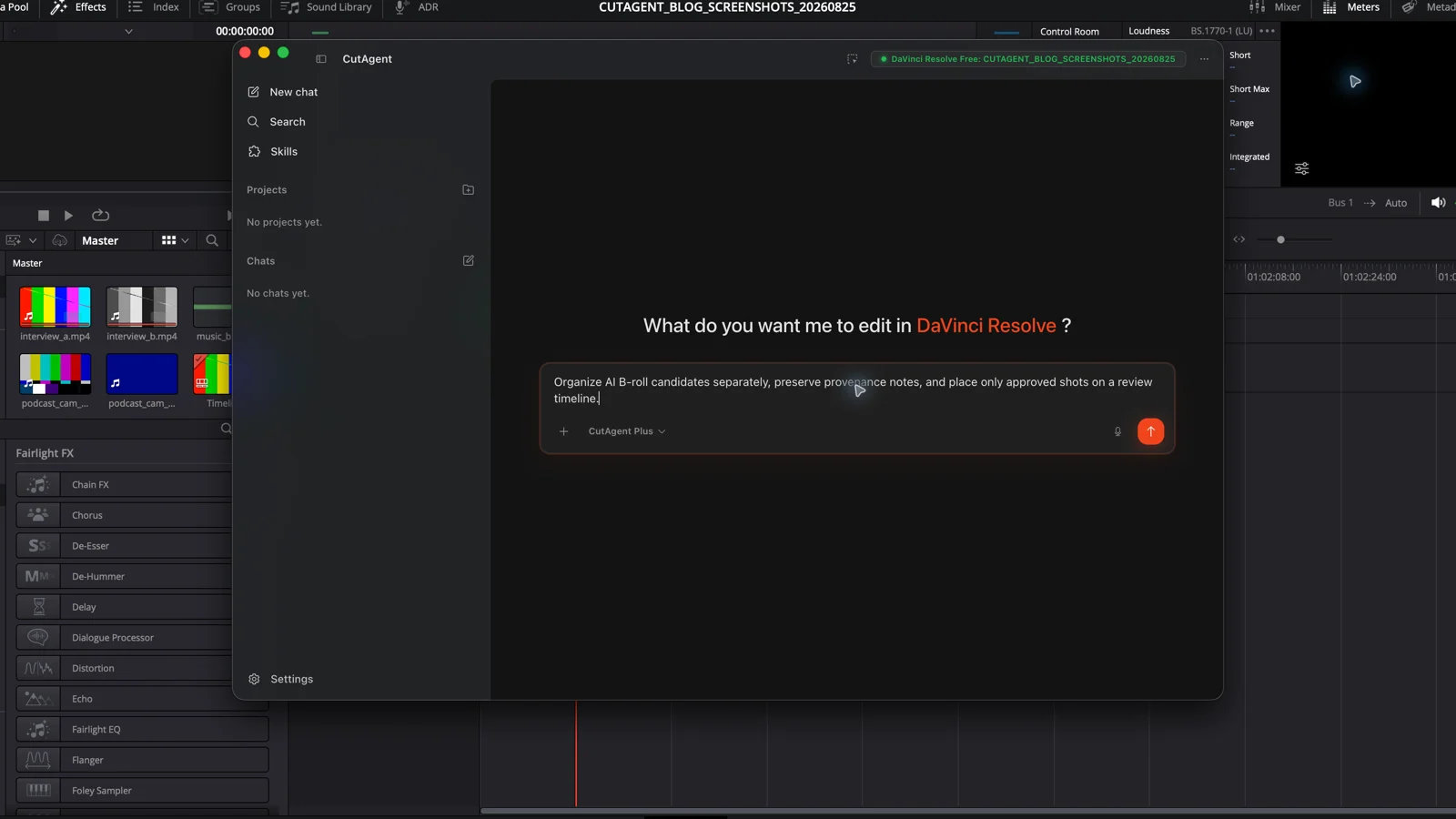
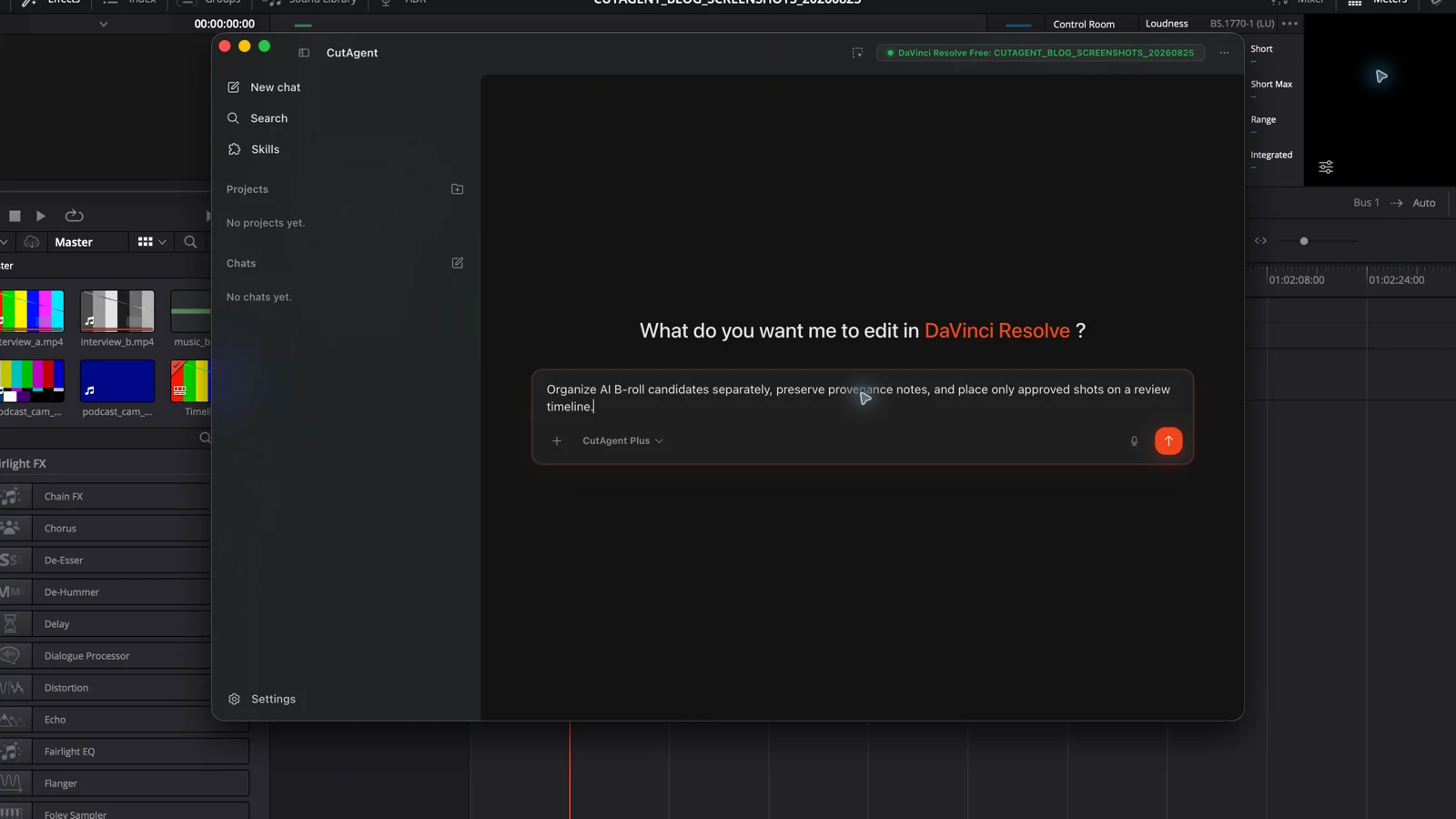
CutAgent does not generate the B-roll in this workflow. After approved media exists locally, an editor can use the CutAgent desktop app to request supported planning, organization, or timeline actions and then inspect the result in DaVinci Resolve. Confirm the available operation before asking for a change; otherwise import and place the clip with DaVinci Resolve's native Media and Edit tools.
Inspect the active B-roll review timeline and make no changes yet. Confirm the timeline name, frame rate, and the markers labeled BR-01 through BR-04. Check whether the approved local clips with matching shot IDs are available and report their duration, resolution, frame rate, and Media Pool bin. Propose placement ranges without overwriting dialogue or changing the source timeline. Stop if any shot ID, target, or supported operation is ambiguous.
Review AI B-roll in five separate passes
| Pass | Questions to answer |
|---|---|
| Editorial | Does the shot add information or useful coverage? Does its duration fit the spoken thought and sequence rhythm? |
| Continuity | Do geography, light, weather, props, wardrobe, movement, eyeline, and screen direction agree with neighboring shots? |
| Artifact | Are hands, faces, reflections, text, logos, edges, object permanence, physics, and motion stable on every used frame? |
| Technical | Are frame rate, cadence, color interpretation, scaling, compression, noise, and audio streams correct for delivery? |
| Rights and disclosure | Is the manifest complete? Are all inputs cleared? Does the provider, client, broadcaster, platform, or jurisdiction require a label or other disclosure? |
Review the clip at normal speed, frame by frame around suspicious motion, and in the full sequence with sound. A still frame cannot reveal a melting object or changing identity. A clean isolated clip cannot reveal that the weather, camera direction, or emotional tone breaks the edit around it.
Reject rather than repair when the subject changes identity, a product differs from the approved design, a real person appears without clearance, readable text mutates, or physical behavior undermines trust. A short generated insert can take longer to hide than to replace with a licensed shot, graphic, or production pickup.
Deliver the clip and its provenance together
Archive the approved source generation, conformed media, manifest, terms snapshot or link, prompts and inputs, review decision, and final timeline usage. Record the exact in and out timecodes of every generated insert. If the client later changes the disclosure policy or asks where a shot came from, the answer should not depend on an editor remembering a browser session.
- Include AI-generated inserts in the final legal, standards, and client review rather than treating technical approval as clearance.
- Keep provenance records even if the delivery codec strips embedded metadata.
- Tell downstream editors which clips are generated and which transformations are safe to repeat.
- Replace a clip if its permitted use, model provenance, input rights, or subject identity cannot be established.
For the dialogue assembly that should exist before this workflow begins, use the text-based editing guide for DaVinci Resolve. If the coverage follows music, the DaVinci Resolve edit-to-beat workflow explains how to use musical points without sacrificing meaning or continuity.
Generate one missing shot, carry its record all the way through delivery, and see whether the result survives all five review passes. Expand the workflow only after that chain is routine.
Sources and further reading
- DaVinci Resolve Media page: importing, bins, and metadata - Blackmagic Design. Accessed August 25, 2026.
- DaVinci Resolve color management - Blackmagic Design. Accessed August 25, 2026.
- DaVinci Resolve 21 New Features Guide - Blackmagic Design. Accessed August 25, 2026.
- Generate videos using text prompts - Adobe. Accessed August 25, 2026.
- Adobe Firefly FAQ - Adobe. Accessed August 25, 2026.
- Generate Video FAQ - Adobe. Accessed August 25, 2026.
- Content Credentials overview - Adobe. Accessed August 25, 2026.
- CutAgent product overview and compatibility FAQ - CutAgent. Accessed August 25, 2026.