Best AI plugins for DaVinci Resolve in 2026
The shortlist is shorter than the search results suggest. Buy a plugin for a repeatable picture problem, not because its product page says AI.
Short answer
Short answer
The most useful AI plugins for DaVinci Resolve in 2026 are Topaz Video for difficult enhancement and restoration, and Colourlab Ai for automated balancing and shot matching. Neat Video also deserves a place for noise and flicker reduction, although it is better described as a specialized computational filter than a generative AI tool. Test DaVinci Resolve Studio's native Neural Engine and effects first: the best plugin is the one that fixes a repeated problem your current edition cannot solve well enough.
The useful shortlist is three tools, not twenty
Most lists mix OpenFX plugins, standalone applications, editing agents, caption services, LUT packs, and features already included in DaVinci Resolve Studio. That makes the word best almost meaningless. This shortlist keeps tools that have a documented DaVinci Resolve path and solve a distinct post-production problem. It does not rank them by sponsorship, feature count, or the size of the AI label.
| Tool | Use it for | DaVinci Resolve path | Check before buying |
|---|---|---|---|
| Topaz Video | Upscaling, deinterlacing, frame interpolation, and difficult restoration | OpenFX effects in DaVinci Resolve Studio, with a standalone application as another route | The plugin exposes a subset of the wider application and can be slow at large upscale factors |
| Colourlab Ai | Technical balancing, reference matching, and shot-to-shot color consistency | An OFX plugin for direct work in the node graph; product tiers also offer linked desktop workflows | Color management, product tier, operating system, and whether you need batch processing |
| Neat Video | Sensor noise, grain, flicker, dust, and repeatable cleanup based on a noise profile | A dedicated plugin for DaVinci Resolve and DaVinci Resolve Studio | Memory and GPU requirements at your delivery resolution |
Test the DaVinci Resolve native baseline first
DaVinci Resolve Studio 21 already includes the DaVinci AI Neural Engine and native tools for jobs that used to require third-party software. Blackmagic Design lists AI IntelliSearch, AI UltraSharpen, AI Motion Deblur, Magic Mask, and other new AI tools in version 21. The Studio edition also adds features beyond the free edition, including the Neural Engine, temporal and AI spatial noise reduction, text-based editing, and Magic Mask.
That baseline matters. Topaz Video is less compelling if AI UltraSharpen or native retiming already passes review. A color-matching subscription is hard to justify if your group grades, stills, and color-managed node tree handle the show. A separate denoiser may still win on one camera's fixed-pattern noise, but the comparison should begin with DaVinci Resolve Studio noise reduction, not with untreated footage.
- Use the same source frames, timeline resolution, color management, and output transform for every comparison.
- Match the amount of processing. An aggressively sharpened result can look impressive in a still and unstable in motion.
- Watch the full shot at delivery size. Check edges, skin texture, hair, fine patterns, motion cadence, and any new temporal artifacts.
- Record render time and cache behavior on your actual workstation. Vendor compatibility is not a performance guarantee.
Topaz Video is the restoration specialist
Choose Topaz Video when the source itself is the problem: a soft archive master, interlaced footage, a low-resolution insert, or a shot that needs frame interpolation. Topaz documents Enhance and Interpolation as OpenFX effects available from the Effects panel in DaVinci Resolve Studio. Its wider product also covers denoising, focus recovery, upscaling, and frame-rate conversion.
The qualification is important. Topaz says DaVinci Resolve Studio is required for its plugin, and warns that responsiveness can drop when upscaling by three or four times. The plugin route is therefore a finishing tool, not permission to stack enhancement on every clip. For a large restoration job, compare the OpenFX workflow with processing selected masters in the standalone application and relinking controlled outputs.
Pick one locked ten-second shot with faces, fine texture, movement, and a difficult edge. Compare the native DaVinci Resolve Studio result with two restrained Topaz settings. Review at 100% and normal playback speed. Reject any version that invents facial texture, creates ringing, makes grain crawl, or changes motion cadence. Keep the fastest result that passes.
Colourlab Ai is for balancing and matching, not final taste
Colourlab Ai is the strongest fit when a colorist or finishing editor has many shots that need a consistent technical starting point. Its current product material describes automatic balancing, shot matching, reference matching, local processing, and support for managed workflows including ACES, DaVinci Wide Gamut, HDR, and Rec.709. The Pro OFX plugin works inside DaVinci Resolve's node graph and connects to the Colourlab Ai server that performs the matching.
Treat the output as a base grade. A neutral balance can be measured; the right skin tone, product color, day-for-night intention, or emotional contrast still belongs to the colorist and the brief. Product tiers also differ. Colourlab's support documentation says the Pro plugin works in any color space and handles RAW files, while batch processing belongs to the desktop application. Verify the current tier and integration for your workstation before designing a show pipeline around it.
Build a scene with five shots from the same setup: correct exposure, underexposed, overexposed, mixed white balance, and a different camera. Set the project color management first. Apply one approved reference, then compare scopes, skin, neutrals, saturation, and highlight handling. Count the shots that need a manual reset rather than a small trim.
Neat Video remains useful when the noise has a pattern
Neat Video is the least fashionable recommendation here and often the most practical. It builds a noise profile from a flat, featureless area of the shot, then uses that profile to reduce noise, grain, flicker, and related defects. That is a specific cleanup mechanism rather than a general promise to improve footage.
Its current compatibility page lists DaVinci Resolve and DaVinci Resolve Studio versions 16 through 21 on supported platforms. It also publishes concrete memory guidance: 4K work needs substantially more RAM and VRAM than HD, and 8K requirements rise sharply. Run its built-in performance test and preview representative motion before committing a timeline to heavy temporal filtering.
Use Neat Video when a sampled noise profile beats the native Studio denoiser on repeated footage from the same camera and exposure conditions. Do not erase texture merely because the noise meter can be pushed lower. Skin that turns waxy and fabric that loses weave are failed results.
Run a five-shot bake-off before adding any plugin
- Name the recurring problem in one sentence: recover a 720p archive insert, match a two-camera interview, or clean fixed-pattern noise from underexposed footage.
- Choose five shots that cover the real failure range. Include motion, faces, fine texture, a clean reference, and the worst usable source.
- Create a protected test timeline and compare untreated, native, and plugin versions at the same frames. Label every version.
- Write acceptance criteria before viewing the result. Include picture defects, temporal stability, render time, cache size, handoff requirements, and edition limits.
- Test export and reopen the project. Confirm that another workstation can load the effect or that you have rendered a safe intermediate.
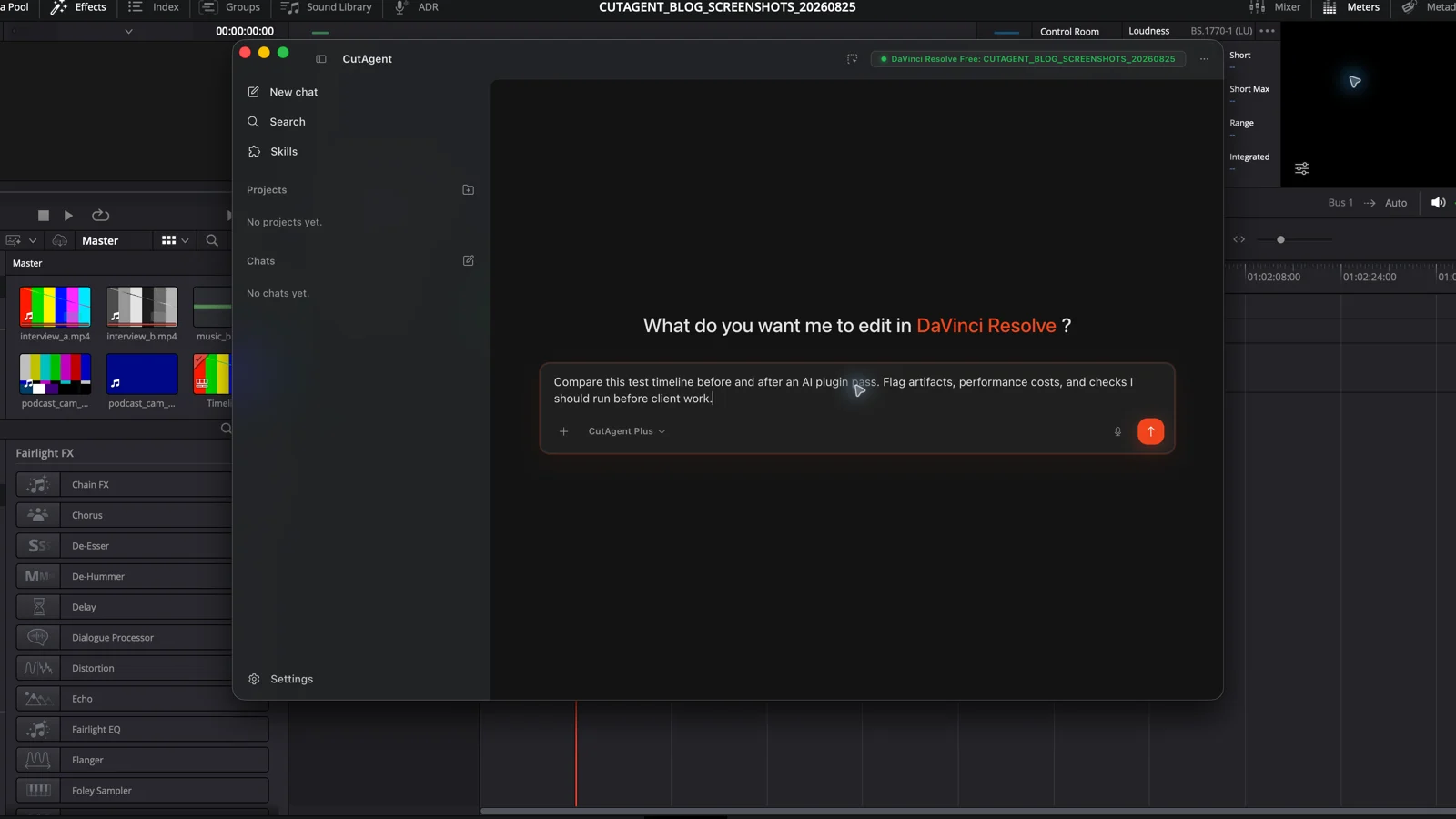
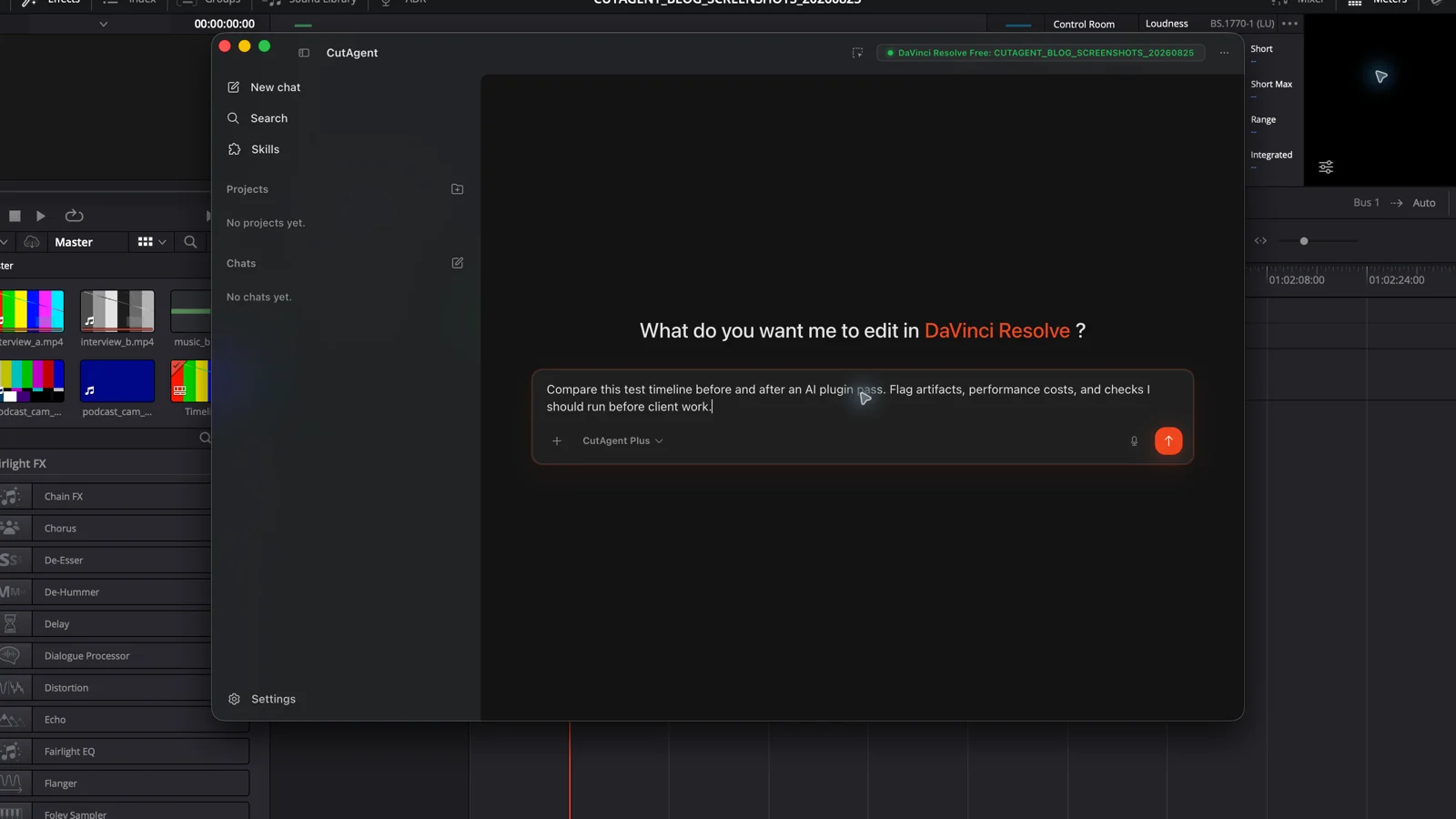
CutAgent can help an editor prepare and document this kind of bounded workflow: inspect project context, organize a test sequence through supported actions, and report checkable timeline state. It is an external AI-assisted workflow layer, not an OpenFX image-processing plugin, so it does not replace Topaz Video, Colourlab Ai, Neat Video, or DaVinci Resolve's native effects. The distinction is useful: plugins process frames or parameters; an agent coordinates supported work around them.
For a broader way to separate agent work from native features and fixed automation, read what an AI agent for DaVinci Resolve actually is. The DaVinci Resolve automation task guide is the next step when the problem is repetitive timeline work rather than image processing.
Which plugin should you choose?
| If your repeated job is… | Test first | Likely choice |
|---|---|---|
| Recovering low-resolution, interlaced, soft, or low-quality sources | AI UltraSharpen, native scaling, retiming, and noise reduction in your DaVinci Resolve edition | Topaz Video if its restrained model produces fewer visible artifacts |
| Balancing and matching many shots before the creative grade | Color management, group grades, stills, and native shot matching | Colourlab Ai if more shots reach a usable base with fewer resets |
| Cleaning recurring sensor noise or flicker | DaVinci Resolve Studio temporal and spatial noise reduction | Neat Video if a camera-specific profile preserves more real detail |
| Captions, rough cuts, markers, relinking, or repeatable timeline setup | Native DaVinci Resolve tools and a supported automation workflow | Do not buy an image plugin; evaluate an editing agent or automation layer |
Choose from your failed frames, not a demo reel. If the native result passes, keep the simpler project. If a plugin wins, save the exact version, license requirement, settings, test media, and fallback render path with the production notes. That record is more valuable than any universal top-ten list.
Sources and further reading
- DaVinci Resolve 21: What's New - Blackmagic Design. Accessed August 25, 2026.
- DaVinci Resolve product overview and edition comparison - Blackmagic Design. Accessed August 25, 2026.
- Topaz Video plugins for DaVinci Resolve - Topaz Labs. Accessed August 25, 2026.
- Topaz Video product overview - Topaz Labs. Accessed August 25, 2026.
- Colourlab Ai product and DaVinci Resolve integration - Colourlab.ai. Accessed August 25, 2026.
- Understanding Colourlab Ai Creator and Colourlab Ai Pro - Colourlab.ai. Accessed August 25, 2026.
- Neat Video compatibility - Neat Video. Accessed August 25, 2026.
- Neat Video quick start guide for DaVinci Resolve - Neat Video. Accessed August 25, 2026.
- CutAgent product overview and compatibility FAQ - CutAgent. Accessed August 25, 2026.