AI podcast editing in DaVinci Resolve
Use AI for the first passes that produce evidence: transcript ranges, speaker-led angle suggestions, dialogue organization, and a baseline mix. Keep performance, pacing, reactions, and final sound with the editor.
Short answer
Short answer
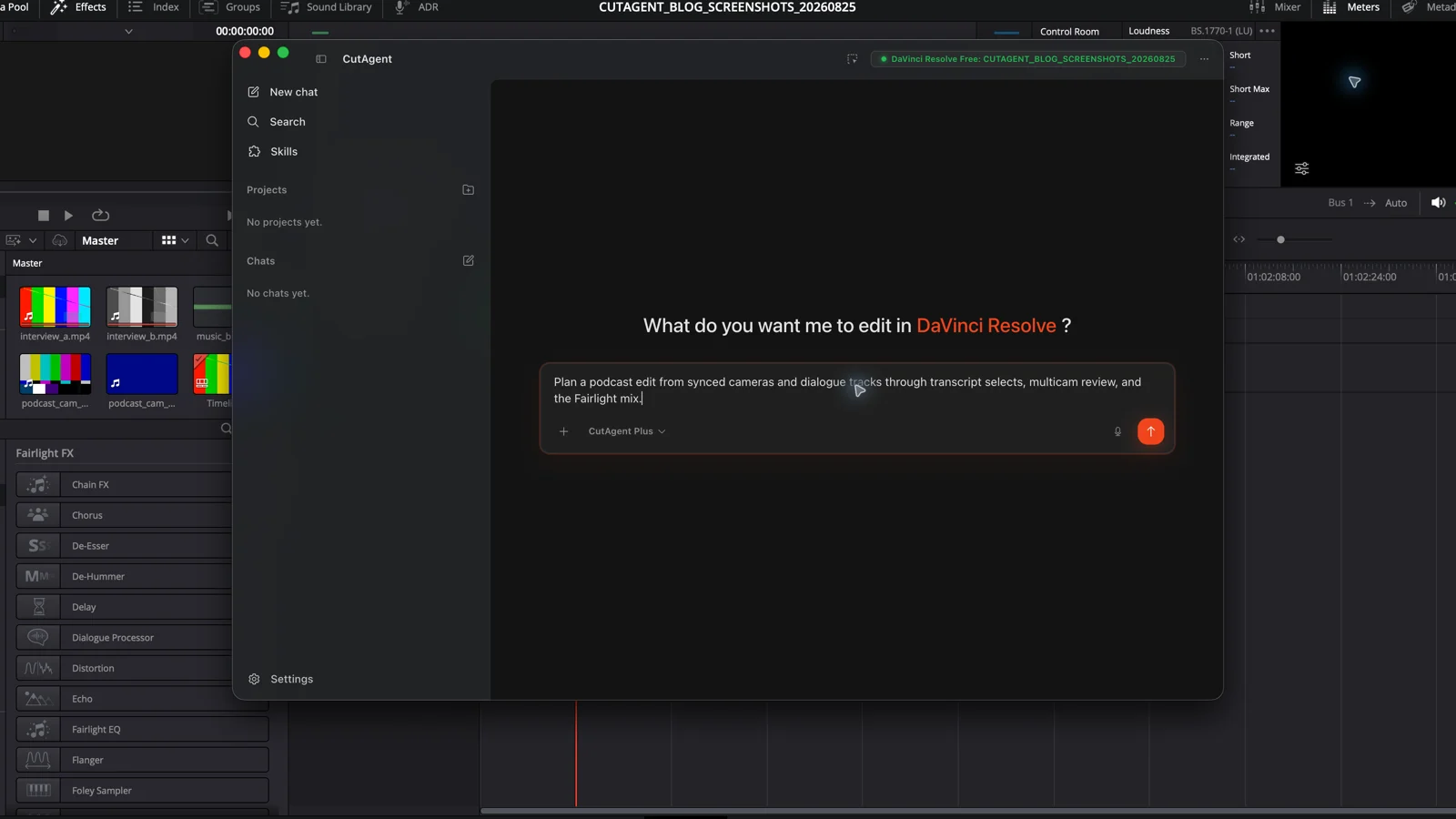
Use AI-assisted podcast tools in stages. First sync cameras and isolated microphones, label each speaker, and protect a source timeline. Next transcribe the intended dialogue and build a content assembly from verified passages. Create or refine the multicam edit after the story cut, so speaker-led switching follows the approved conversation rather than raw recording. Then review pauses and reactions, organize dialogue tracks, apply a conservative audio baseline, create captions, and inspect the full export. AI can propose cuts, switches, cleanup, and mix settings; the editor still approves meaning, performance, picture rhythm, lip sync, and sound.
The useful AI podcast workflow has a strict order
Do not start by asking for a finished episode. A podcast edit contains several different problems: source sync, speaker identity, content selection, camera choice, pause removal, dialogue repair, captions, and delivery. Each step changes the evidence available to the next one.
| Stage | Automation can prepare | Editor must approve |
|---|---|---|
| Source map | Inventory, sync candidates, camera and microphone labels | Correct source identity, drift, channel map, and lip sync |
| Transcript | Timed words, speaker labels, topic search, candidate ranges | Names, numbers, attribution, meaning, and usable context |
| Content assembly | A new timeline built from approved transcript ranges | Argument, performance, pacing, omissions, and continuity |
| Multicam pass | Speaker-led angle suggestions or a first-pass switch | Reactions, interruptions, wide shots, eyelines, and cut rhythm |
| Audio baseline | Track organization, level starting points, cleanup, and ducking | Natural voice, room tone, overlap, loudness, and listening quality |
| Captions and delivery | Timed cue first pass and export preflight | Text, timing, frame safety, codec, channels, and final file |
The order prevents wasted work. A polished mix on a three-hour recording has to be rebuilt after a 45-minute content cut. A speaker-led camera pass on raw material creates switches inside sections the editor later removes. Lock the dialogue structure first, then spend attention on picture and sound.
1. Lock sync and build a speaker-to-microphone map
Create the technical truth before transcription. Name every camera angle, recorder file, isolated microphone, mix track, sample rate, and recording break. Decide which audio will drive sync and which track will become the program dialogue source.
- Confirm the same clap, timecode, or waveform event near the beginning of every source.
- Check another sync point near the end to reveal drift, not only a fixed offset.
- Map Host, Guest 1, Guest 2, room mix, and backup channels to unambiguous track names.
- Listen for a microphone recorded to the wrong person, duplicated channels, phase problems, or a missing section.
- Keep the synced source or multicam clip intact and create a separate working timeline.
Blackmagic Design documents multicam sync by waveform, timecode, or In and Out points. DaVinci Resolve 21 can also include all audio tracks from all source angles in a multicam clip. That flexibility makes the channel map more important: carrying nine synchronized tracks forward is useful only when the editor knows which voice and recording each track contains.
2. Build the content edit from verified transcript ranges
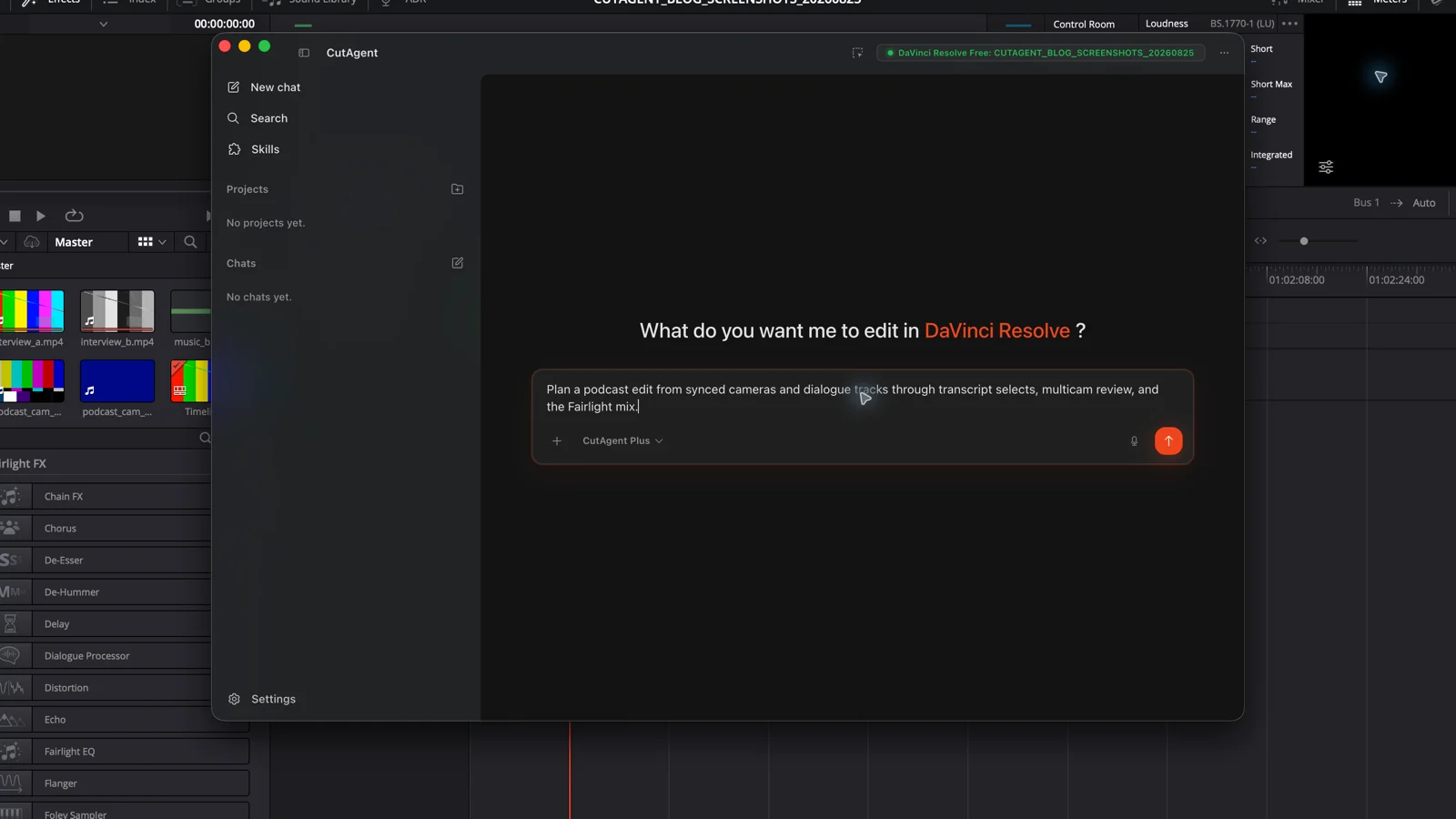
Transcribe the intended isolated or mixed dialogue sources, then correct speaker names and factual terms before using the text as an edit map. Search can find a topic, repeated answer, sponsor mention, or safety claim. It cannot tell which delivery has the best energy or whether a pause carries meaning.
Using only the synced podcast sources in bin Episode 14 synced, prepare a dialogue selects report for Host Maya and Guest Andre. Find the cold open, the complete origin story, the product failure example, the correction about the launch date, and the closing advice. Preserve one sentence of context around each candidate. Flag uncertain speaker labels, names, numbers, overlapping speech, and repeated takes with source clip and timecode. Do not change Episode 14 source or build the timeline until I approve the ranges.
After range approval, assemble on a new dialogue timeline. Audition the run-in and tail around every transcript selection; recognized speech begins later than a usable breath or reaction and may end before the natural release of the thought. Keep handles for audio crossfades and picture choices.
The DaVinci Resolve text-based editing guide covers source and timeline transcription in detail. Native transcription-driven editing is a DaVinci Resolve Studio feature; verify the installed edition before choosing that route.
3. Let speaker detection propose the multicam pass
Build the multicam pass after the dialogue assembly is stable. In DaVinci Resolve Studio 20 and later, AI Multicam SmartSwitch can analyze a multicam clip and choose angles from the active speaker using audio and visual information such as lip movement. Blackmagic Design describes it as a first pass to finesse, which is the right standard for a podcast edit.
| Moment | Automatic tendency | Editorial check |
|---|---|---|
| Question ends and answer begins | Cut to the new speaker | Keep the host's reaction if it carries the handoff |
| Two people talk over each other | Choose one detected speaker or a wide angle | Use the angle that makes the interruption readable |
| Long uninterrupted answer | Hold the active speaker | Add a motivated wide, host reaction, or detail only when it supports the thought |
| Off-camera acknowledgment | Switch on a brief voice | Avoid a distracting cut for every yes, laugh, or breath |
| Correction or vulnerable moment | Follow whoever is speaking | Favor the performance and context over mechanical alternation |
Review at normal speed first. Then inspect lip sync, switch delay, minimum shot duration, and every overlap. Check the wide shot at the intro, outro, silence, and interruptions. A technically correct active-speaker cut can still make a conversation feel impatient.
4. Tighten pauses without erasing the conversation
Run silence detection after the content and multicam structure exist. The correct cut now depends on more than waveform level: a gap may contain a host reaction, a useful camera change, a laugh, a breath, room tone, or space before a difficult answer.
- Remove clear dead air caused by resets, slate delays, or abandoned starts on a protected working timeline.
- Keep pauses that reveal thought, humor, discomfort, emphasis, or a handoff between speakers.
- Review both isolated microphones around an edit so a quiet interjection is not lost.
- Check captions, music, graphics, and alternate audio after any ripple-changing operation.
- Listen through every join for clipped consonants, missing breaths, and room-tone jumps.
Use the DaVinci Resolve silence-removal guide for threshold, minimum-duration, padding, and join review. Do not treat a shorter runtime as proof of a better episode.
5. Build the audio baseline, then mix the voices by ear
Organize tracks before automatic mixing: one type of audio per track, stable speaker labels, correct channel mapping, intentional room tone, music on its own track, and sound effects separated. Blackmagic Design's AI Audio Assistant in DaVinci Resolve Studio expects differing audio elements to stay off the same track. It can organize tracks, balance dialogue, adjust mixer faders, apply dialogue cleanup where needed, duck music, and prepare a delivery-standard baseline.
Treat that result as a mix proposal. Listen to the full episode on monitoring speakers and headphones. Compare each speaker for intelligibility and natural tone, check breaths and laughs, inspect overlap, and listen for noise reduction or isolation that makes one microphone sound detached from the room. Automatic ducking also needs a music check around short acknowledgments and quiet speech.
| Check | Listen for |
|---|---|
| Speaker consistency | Sudden level, tone, or room changes between phrases and camera edits |
| Dialogue repair | Watery artifacts, clipped word endings, missing ambience, or over-isolated voices |
| Overlap | One speaker masking another or automation riding the wrong microphone |
| Music ducking | Music pumping on laughs, breaths, and short interjections |
| Delivery | Correct bus, channel layout, loudness requirement, peaks, and complete tail |
DaVinci Resolve Free still includes Fairlight's core editing, EQ, dynamics, repair, mixing, and delivery tools. AI Audio Assistant, Multicam SmartSwitch, native transcription-driven editing, and Voice Isolation have Studio boundaries documented by Blackmagic Design. Confirm the edition and live capability before promising an AI-specific path.
6. Add captions after timing is stable and review the file
Generate or import captions after the dialogue timing is stable. Correct speaker names, guest names, brands, numbers, episode references, and any sentence where punctuation changes meaning. Then watch the cues over the actual multicam edit for faces, lower thirds, and line breaks.
- Export a review file with the intended picture resolution, frame rate, audio bus, and caption mode.
- Open it outside DaVinci Resolve and watch the cold open, every flagged edit, the densest overlap, a music transition, and the final minute.
- Scrub the full file for black frames, frozen angles, missing graphics, caption gaps, and unexpected silence.
- Listen to the beginning and end of every recording break and confirm continuous sync.
- Approve the episode only after picture, speech, mix, captions, and file properties all pass.
In CutAgent, the editor gives the brief in the desktop app, CutAgent coordinates supported local DaVinci Resolve operations and reports results, and the editor reviews the timeline and export in DaVinci Resolve. The public CutAgent workflow covers transcript, multicam, Fairlight, caption, and verification work, while exact actions still depend on the installed version, edition, media, and project state.
Inspect Episode 14 review v03 without changing it. Report the source multicam clip, active camera angles, speaker-to-audio-track map, timeline frame rate and duration, offline media, dialogue and music tracks, subtitle tracks, markers, and current render setup. Flag any ambiguous source, speaker, sync, channel, caption, or delivery state. Stop before proposing edits.
Sources and further reading
- DaVinci Resolve Edit page: multicam editing and transcription workflows - Blackmagic Design. Accessed August 25, 2026.
- DaVinci Resolve Fairlight page - Blackmagic Design. Accessed August 25, 2026.
- DaVinci Resolve 20 New Features Guide: Multicam SmartSwitch and AI Audio Assistant - Blackmagic Design. Accessed August 25, 2026.
- DaVinci Resolve 21 New Features Guide: multicam audio and sync updates - Blackmagic Design. Accessed August 25, 2026.
- Blackmagic Design announces DaVinci Resolve 20 - Blackmagic Design. Accessed August 25, 2026.
- CutAgent product overview and compatibility FAQ - CutAgent. Accessed August 25, 2026.