DaVinci Resolve captions: choose subtitle tracks or Text+
Native subtitle tracks are the practical choice for exportable captions. Text+ is the better route when captions are part of the visual design. The hard work in both cases is segmentation and review.
Short answer
Short answer
In DaVinci Resolve Studio, create captions from the current timeline audio and review the generated subtitle track. In DaVinci Resolve Free, import a timed SRT file or add subtitle cues manually. Keep a native subtitle track when you need editable, exportable captions; use Text+ clips when the words need brand styling or animation. In either edition, review every cue in context and verify the final export.
Choose the delivery format before generating captions
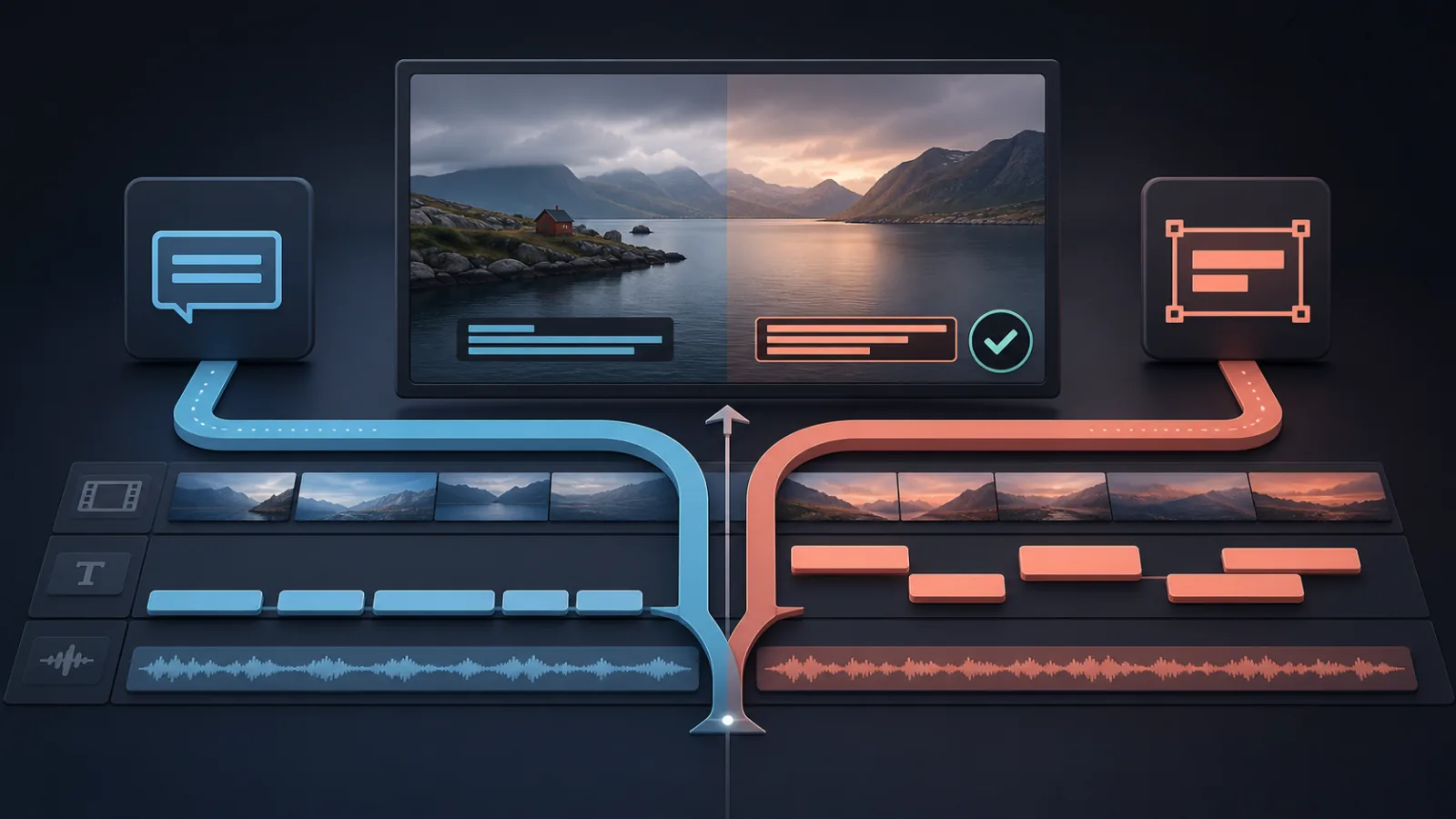
Caption format is a delivery decision, not a styling preference. A native subtitle track keeps text in DaVinci Resolve's subtitle system and is the safer starting point when a broadcaster, platform, or client expects a subtitle file. Text+ places each cue on a video track as a graphic, which gives the editor more visual control but changes how the captions are revised and delivered.
| Decision | Native subtitle track | Text+ caption clips |
|---|---|---|
| Best for | SRT-style delivery, language versions, simple on-screen subtitles | Branded social captions, kinetic type, emphasis, custom layouts |
| Where the cues live | On a subtitle track | As visible clips on a dedicated upper video track |
| Text revision | Centralized in DaVinci Resolve's subtitle tools | Each graphic clip or its source template must remain editable |
| Visual range | Consistent subtitle styling and placement | Fusion styling, animation, shadows, color, and per-word treatment |
| Delivery risk | Export settings can omit, embed, separate, or burn captions | Captions are part of the picture when rendered, but can collide with graphics |
Blackmagic Design documents subtitle and closed-caption tools on the Edit page, including timed-text import and multiple subtitle tracks. Its current product comparison also places text-based editing among DaVinci Resolve Studio features. Check the exact DaVinci Resolve version, edition, and delivery specification before assuming that a transcription or export route is available.
Define the caption contract before touching the timeline
A useful caption brief names the timeline, language, format, text rules, visual rules, protected tracks, and proof of completion. Without that contract, an automated workflow has to guess whether to rewrite speech, how to split a sentence, and where to place graphics.
- Source: the exact current timeline and the audio that should be transcribed.
- Format: native subtitle track, separate subtitle file, or designed Text+ captions.
- Language: spoken language, spelling convention, and supplied names or terminology.
- Text policy: verbatim speech, permitted cleanup, punctuation style, and how uncertainty is marked.
- Layout: maximum lines, safe-area expectations, preferred line length, and protected lower thirds.
- Timing: minimum readable duration, treatment of pauses, and whether speaker changes force a new cue.
- Proof: cue count, representative readback, unresolved terms, and a frame or render check.
Create English captions from the current Interview master v07 timeline as a new native subtitle track. Keep the speaker's wording; correct punctuation only. Use the supplied name list, flag uncertain product terms with timecodes, and do not replace any existing subtitle track. Review the beginning, middle, and end, then report the cue count and unresolved terms.
Create single-line Text+ captions from the current Social 9x16 v12 timeline on a new empty video track above all picture and graphics. Use the approved caption template. Split at sentence, clause, pause, and speaker boundaries; never drop a spoken word. Run a dry review of every cue before inserting clips. Preserve all existing tracks, then verify representative text, timing, placement, and a rendered frame.
Segment for reading, not for a word-count target
Transcription answers what was said and when. Captioning decides what the viewer can read in the available space. Mechanical chunks of the same length often split names, verbs from objects, or setup from punchline. Start with sentence endings, clause punctuation, speaker changes, and meaningful pauses, then test the result at playback speed.
| Failure | What the viewer experiences | Correction |
|---|---|---|
| A cue is visually too long | The line crowds the frame or shrinks below the approved style | Split at the strongest nearby grammatical boundary |
| A cue is too brief | Text flashes before it can be read | Merge with a connected phrase or adjust the boundary without changing speech |
| One word is orphaned | Meaning arrives in an awkward fragment | Rebalance the neighboring cues around the full phrase |
| Two speakers share a cue | Speaker identity becomes unclear | Force a boundary at the speaker change |
| A proper name is guessed | A polished caption states the wrong fact | Use the supplied spelling or flag the term for human review |
There is no universal number that makes a cue readable. Frame shape, font size, language, shot composition, speech rate, and the intended rhythm all matter. For designed captions, inspect representative speech near the beginning, middle, and end before choosing the segmentation rules. Then review the entire cue plan; a clean sample does not prove that the dense section near the end works.
Keep caption work isolated and reversible
Caption generation should happen after the program edit is stable enough that timing will not immediately drift. It should also leave the picture and program audio untouched. A native route belongs on a new or explicitly chosen subtitle track. A Text+ route belongs on a dedicated empty video track above occupied picture and graphics.
- Inspect the active timeline, track layout, frame shape, existing captions, and protected graphics.
- Create a fresh transcript from the current program audio; do not reuse an earlier edit's transcript.
- Choose one caption format and define explicit segmentation and style rules.
- Review the planned cue text, timing, boundaries, and warnings before changing the timeline.
- Insert into a new subtitle track or a dedicated empty upper video track without moving other clips.
- Read back representative cues and inspect a frame or short render at delivery resolution.
- Record unresolved names, jargon, overlaps, and timing decisions for the editor.
CutAgent's caption workflow follows this route: an editor describes the deliverable in the desktop app, CutAgent prepares and executes supported caption operations, and the editor inspects the resulting tracks and frames in DaVinci Resolve. The review is part of the workflow. CutAgent does not turn a transcript into an approved delivery on its own.
This is a focused application of the broader plan, execute, and review model for DaVinci Resolve automation. Captions deserve their own contract because a technically valid cue can still be editorially wrong, unreadable, or unsafe over the picture.
Run separate text, timing, picture, and delivery passes
Do not review captions by scrolling through text alone. Four short passes catch different failure classes.
| Pass | Check | Evidence to keep |
|---|---|---|
| Text | Names, numbers, jargon, punctuation, omissions, and unintended rewriting | A list of corrected and unresolved terms with timecodes |
| Timing | Entry and exit against speech, readable duration, pauses, speaker changes | Reviewed first, middle, dense, and final sections |
| Picture | Safe area, faces, lower thirds, shot changes, contrast, and one-line overflow | Representative frames at delivery resolution |
| Delivery | Caption inclusion, burn-in or separate-file choice, language label, and actual output | A sample export opened outside the project |
Start with the required deliverable
Ask one question before opening the caption tools: does the recipient need selectable subtitle data or designed pixels in the picture? Choose a native subtitle track for the first case and Text+ for the second. If both are required, approve one cue list before producing two outputs.
To try this as a reviewable natural-language workflow, download CutAgent and begin with a duplicate or otherwise protected timeline. Give it the format, language, track, segmentation constraints, protected elements, and evidence you expect back.
Sources and further reading
- DaVinci Resolve Edit page - Blackmagic Design. Accessed July 23, 2026.
- DaVinci Resolve product and edition overview - Blackmagic Design. Accessed July 23, 2026.
- DaVinci Resolve 21 New Features Guide - Blackmagic Design. Accessed July 23, 2026.
- CutAgent product overview - CutAgent. Accessed July 23, 2026.