Can ChatGPT control DaVinci Resolve?
The model can understand your request. It still needs a trustworthy route to the open project before a sentence in chat can become a cut, marker, caption, or render setting.
Short answer
Short answer
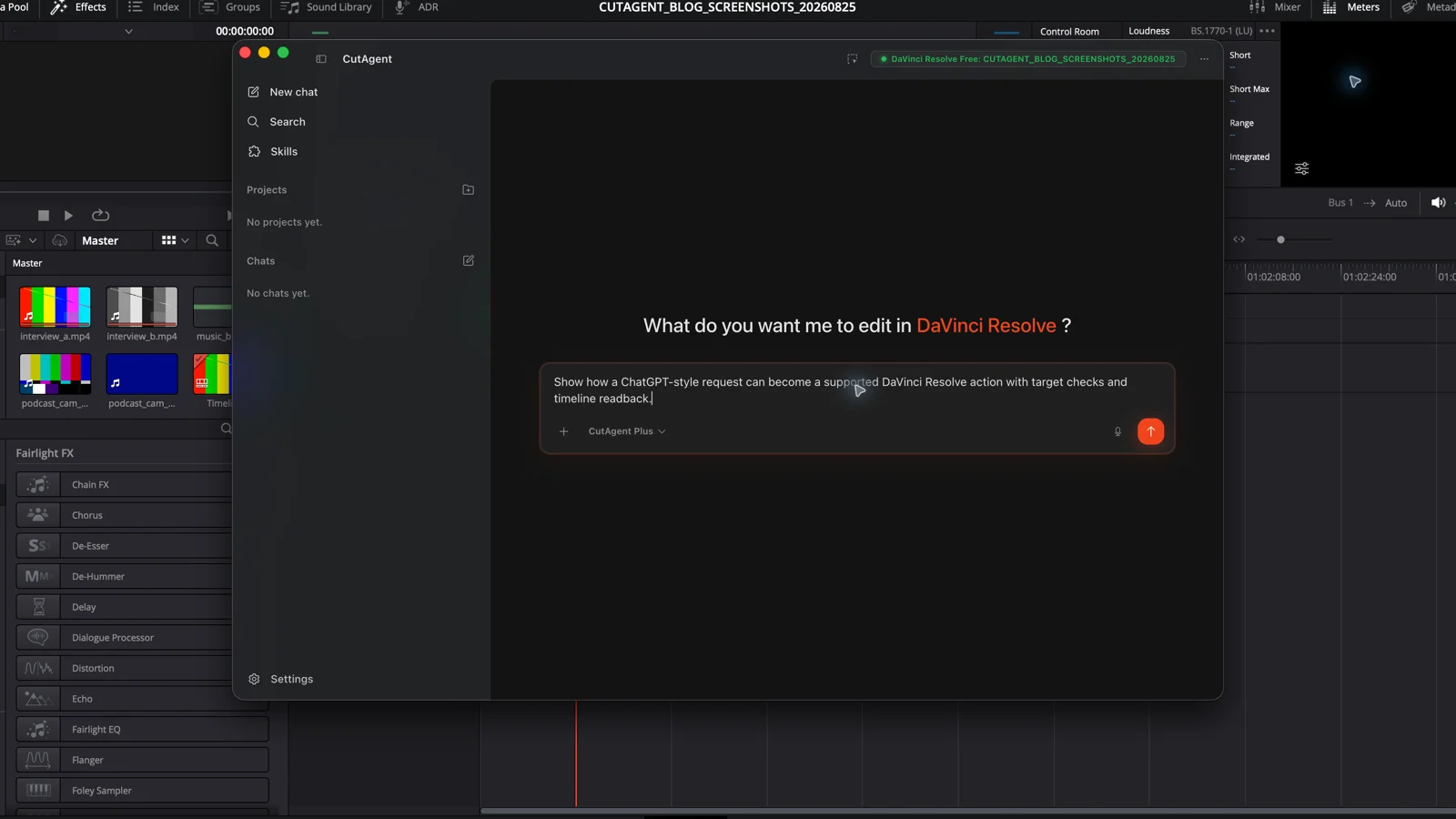
ChatGPT cannot control an open DaVinci Resolve project from an ordinary chat by default. It can discuss an edit or write instructions, but timeline control requires an agent or app with approved tools that can reach the local project. OpenAI supports tool-using apps and agents; DaVinci Resolve exposes supported automation interfaces; and CutAgent provides a purpose-built local workflow for natural-language editing. The editor still has to define the target and inspect the result.
A good answer in chat is not a timeline change
Ask an ordinary ChatGPT conversation how to add a marker or shorten a music cue and it can explain the steps. Unless that conversation has an approved action connected to your editing system, it cannot see which DaVinci Resolve project is open, inspect the active timeline, or make the change. Copying an answer into the edit suite is still manual work.
OpenAI makes the same distinction in its current product documentation. Apps in ChatGPT can expose search, context, and approved actions. A model response alone has no such access. The real question is therefore not whether the model knows editing vocabulary. It is whether the interface you are using has a controlled execution path into DaVinci Resolve.
| Setup | What it can do | What it cannot prove |
|---|---|---|
| Ordinary ChatGPT conversation | Explain a workflow, reason over notes, and draft a precise brief | That the open project was inspected or changed |
| ChatGPT with a configured action or custom app | Call the exact tools exposed by that app, subject to plan, workspace, and permission limits | That an unexposed DaVinci Resolve operation is available or visually correct |
| CutAgent desktop or a supported agent with CutAgent | Inspect live context and run supported local DaVinci Resolve operations | That the editorial choice is good without editor review |
Control needs four working links
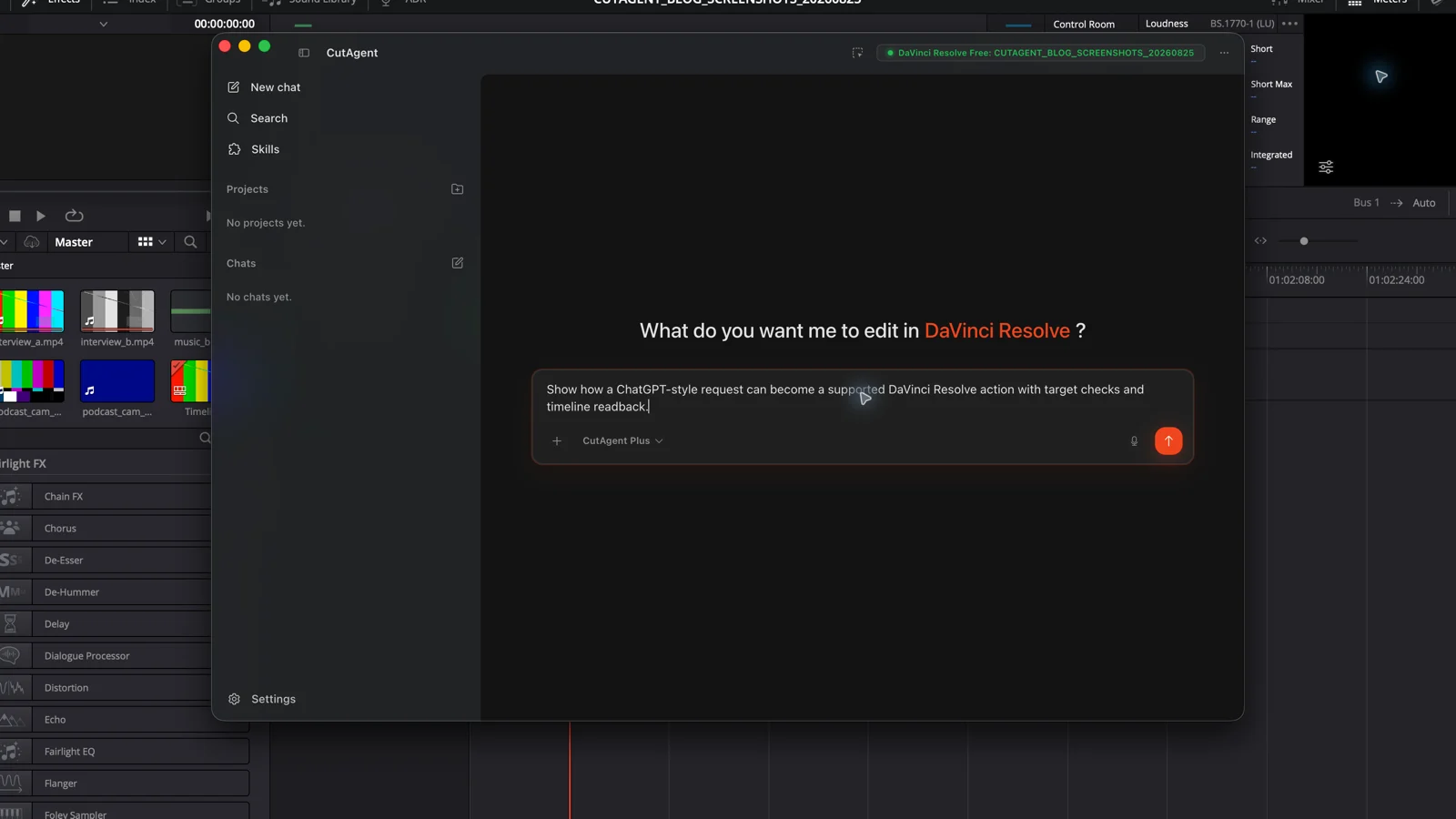
A natural-language edit reaches the timeline only when four links hold: the request, the agent runtime, the execution layer, and DaVinci Resolve itself. The model interprets intent. The runtime chooses an allowed tool. The execution layer translates that call into a supported operation. DaVinci Resolve owns the project state that must be read back and reviewed.
| Link | Job | Failure to watch for |
|---|---|---|
| Editor request | Name the project context, target, change, boundaries, and acceptance check | “Make it better” leaves the agent to invent taste and scope |
| Agent runtime | Select an approved tool, handle its result, and stop on ambiguity | A chat interface has no editing tool or chooses an action outside the brief |
| Execution layer | Expose supported operations with clear inputs and errors | A generic automation can click the wrong control or cannot read project state |
| DaVinci Resolve and review | Apply the operation to the intended project and show what changed | The tool reports success but the editor checks neither timeline nor output |
ChatGPT has tool routes, but they are not automatic DaVinci Resolve support
ChatGPT agent can browse websites, work with files, use a terminal, and call connected services. OpenAI also documents custom apps built with the Model Context Protocol, including apps with write actions. These are general connection mechanisms. They do not turn every desktop application into a supported target, and they do not establish a current CutAgent-to-ChatGPT integration.
The limits matter. OpenAI's developer mode documentation says ChatGPT connects to remote MCP servers rather than local ones directly, write actions can require confirmation, and availability varies by plan and workspace. It also warns that custom connections must be vetted. A remote connector to a workstation running client media deserves a security review before it deserves an editing brief.
Use a path designed for the local edit suite
CutAgent's direct path is editor → CutAgent desktop → supported local DaVinci Resolve operation → result to review. Its current product page documents DaVinci Resolve 20 or later on macOS and Windows, including Free and Studio, while noting that some actions depend on edition-specific features. The same page names Claude Code and Codex as supported external agent tools. It does not currently name ordinary ChatGPT as an installed agent-support target.
DaVinci Resolve also has its own AI-assisted features and automation surfaces. Those are separate from ChatGPT. For example, Blackmagic Design's DaVinci Resolve 20 feature guide describes IntelliScript as a Studio feature that builds a timeline by matching transcribed dialogue to a supplied script. That is a defined in-app workflow, not a general conversation controlling the whole edit suite.
If you want an OpenAI agent outside the CutAgent desktop app, use the supported Codex route described on the product page. The separate DaVinci Resolve CLI guide explains why a structured execution layer is more useful to an agent than a pile of UI instructions.
Test one marker before handing over a sequence
Start with a read-only inspection. Ask the agent to report the exact active project and timeline, frame rate, duration, and current marker count. If any field is unavailable or wrong, stop. This separates a convincing model answer from a working project connection without touching the edit.
Inspect the open DaVinci Resolve project and active timeline. Make no changes. Report the exact project name, timeline name, frame rate, duration, and current timeline marker count. If you cannot verify any field from live project state, say which field is unavailable and stop.
Then create one disposable marker on a test timeline or project copy. Name the target, timecode, marker color, exclusions, and readback. Do not start with a ripple edit, relink, grade, mix change, or render; those have larger consequences and need a stronger review plan.
On the active timeline Agent connection test, add one yellow timeline marker named “Connection verified” at 01:00:05:00. Change nothing else. Stop if the project, timeline, frame rate, or timecode is ambiguous. Read the marker back and report its name, color, and exact timecode.
- Confirm that the project and timeline names match the brief.
- Check the marker on the timeline at the requested frame, not only in the agent's report.
- Undo or delete the canary after the test.
- Widen the scope only when the live state, tool result, and visible timeline agree.
Choose the interface by the job
Use ordinary ChatGPT when you need to clarify a brief, organize review notes, compare editing approaches, or draft instructions you will carry out yourself. Use a connected editing agent when the task has a named target, supported operation, bounded scope, and a result that can be checked in DaVinci Resolve.
For CutAgent, the shortest supported route is its desktop app. If you prefer an external coding agent, follow the current setup for Codex or Claude Code rather than assuming a ChatGPT conversation has the same tools. Begin with the read-only test, run the marker canary, and keep creative approval at the timeline.
Sources and further reading
- Apps in ChatGPT - OpenAI. Accessed August 25, 2026.
- Developer mode and MCP apps in ChatGPT - OpenAI. Accessed August 25, 2026.
- Introducing ChatGPT agent: bridging research and action - OpenAI. Accessed August 25, 2026.
- DaVinci Resolve 20 New Features Guide - Blackmagic Design. Accessed August 25, 2026.
- CutAgent product page and agent support FAQ - CutAgent. Accessed August 25, 2026.