DaVinci Resolve 20 vs 21 AI tools
Version 20 concentrated on assembly, captions, multicam, masking, and audio. Version 21 adds search, generated speech, focus and face work, slate metadata, sharpening, and motion deblur. Upgrade for a repeated job, not the length of the feature list.
Short answer
Short answer
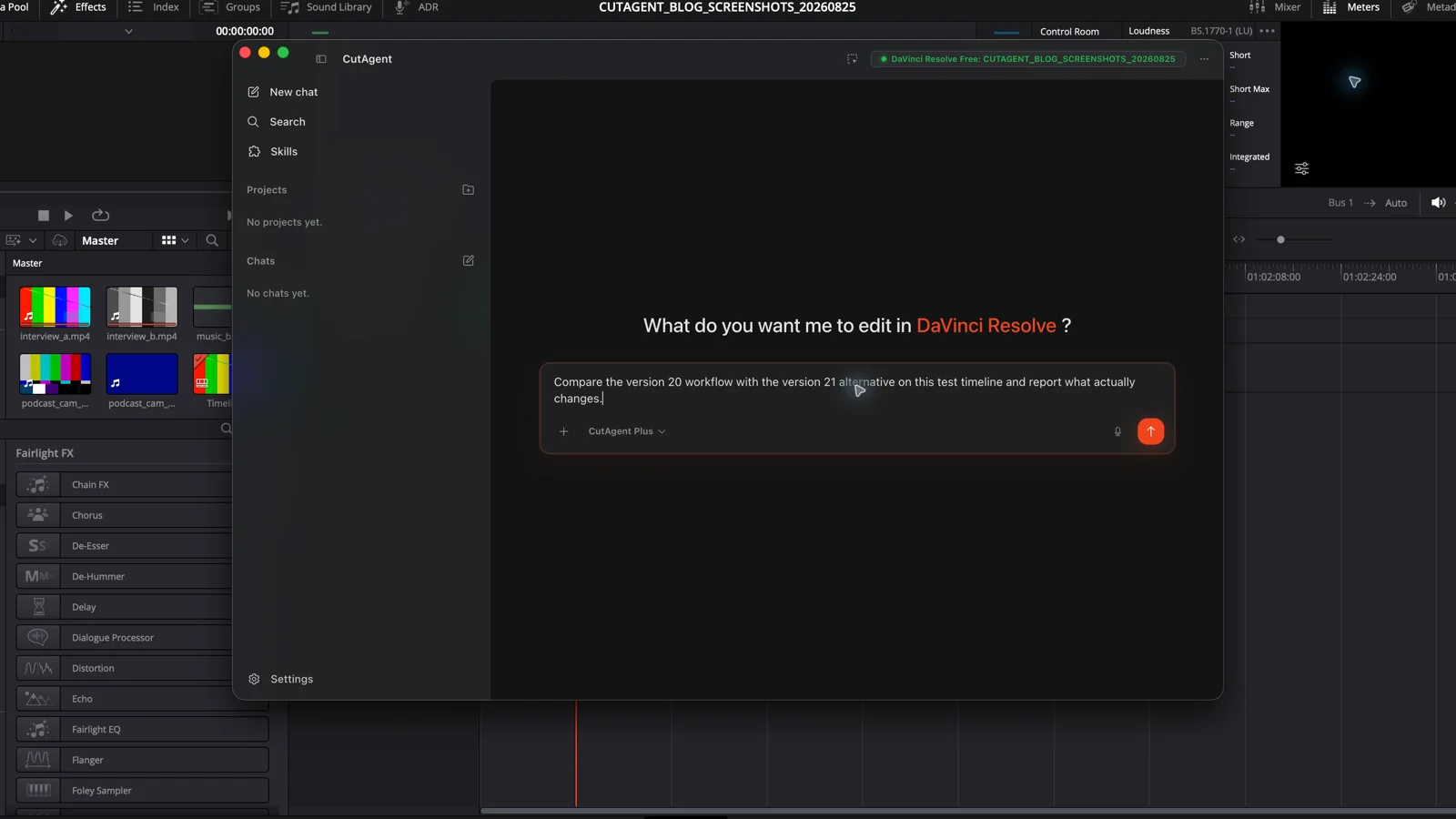
DaVinci Resolve 20 introduced a broad set of Studio AI workflows, including AI IntelliScript, AI Multicam SmartSwitch, AI Animated Subtitles, AI Audio Assistant, Magic Mask 2, and enhanced AI Super Scale. DaVinci Resolve 21 adds a different layer: AI IntelliSearch, AI Speech Generator, AI CineFocus, face age and reshaping tools, AI Blemish Removal, AI Slate Finder and Slate ID, AI UltraSharpen, and AI Motion DeBlur. Editors already on DaVinci Resolve 20 Studio should upgrade when search, speech, slate, focus, face, or restoration work solves a repeated production problem. Moving from version 20 Free to version 21 Free does not itself unlock the Studio-only DaVinci AI Neural Engine toolset.
The useful difference is workflow coverage, not AI count
DaVinci Resolve 20 and 21 do not represent a simple old-AI versus new-AI split. Version 20 introduced tools that assemble, analyze, mask, subtitle, scale, and mix. Version 21 keeps that base and adds media discovery, generated speech, focus manipulation, face work, slate extraction, and new image-restoration effects.
| Workflow question | DaVinci Resolve 20 Studio | What DaVinci Resolve 21 Studio adds |
|---|---|---|
| Can it build a first assembly from existing production material? | AI IntelliScript and AI Multicam SmartSwitch | Those version 20 workflows remain; version 21 is not primarily an assembly release |
| Can it find a shot by what appears or is said? | Metadata, transcription, bins, and existing search paths | AI IntelliSearch across analyzed media, including objects, dialogue keywords, and faces |
| Can it create or repair spoken audio? | AI Audio Assistant and other version 20 dialogue tools | AI Speech Generator, alongside the existing mix and cleanup workflows |
| Can it isolate, refocus, retouch, or restore picture? | Magic Mask 2 and enhanced AI Super Scale among the version 20 additions | AI CineFocus, face tools, AI Blemish Removal, AI UltraSharpen, and AI Motion DeBlur |
| Can it turn slate images into useful metadata? | Manual or existing metadata workflows | AI Slate Finder and AI Slate ID |
DaVinci Resolve 20 built the assembly and finishing baseline
Blackmagic Design's version 20 guide groups its major AI additions around recognizable post-production jobs. AI IntelliScript matches a script to transcribed clips and builds a timeline from matching takes. AI Multicam SmartSwitch analyzes speaker activity and picture traits to create a first multicam pass. AI Animated Subtitles ties Fusion title templates to spoken-word timing, while AI Audio Assistant analyzes a timeline and creates a starting mix.
Picture work also changed. Magic Mask 2 revised object and person isolation with a paint tool for correcting selections. Enhanced 3x and 4x AI Super Scale modes added more control over sharpness and noise reduction. These tools did not remove review: Blackmagic describes Multicam SmartSwitch as a first pass to finesse, and warns that Super Scale is computationally intensive.
| Version 20 AI addition | Primary job | Editor still checks |
|---|---|---|
| AI IntelliScript | Build a script-matched assembly from transcribed source clips | Take choice, performance, omissions, scene order, and edit rhythm |
| AI Multicam SmartSwitch | Create a speaker-aware multicam first pass | Reaction shots, wide-shot logic, interruptions, timing, and camera mistakes |
| AI Animated Subtitles | Drive animated subtitle templates from word timing | Transcription, segmentation, reading speed, design, safe area, and export |
| AI Audio Assistant | Organize and balance a starting mix for a chosen delivery standard | Track roles, dialogue damage, music intent, loudness, automation, and the final listen |
| Magic Mask 2 | Create and refine tracked person or object masks | Edges, occlusion, hair, motion blur, missed frames, and the applied grade or effect |
| Enhanced AI Super Scale | Upscale low-resolution footage at 3x or 4x with sharpness and noise controls | Invented detail, ringing, texture, motion stability, and render cost |
DaVinci Resolve 21 adds search, speech, slate, focus, face, and restoration tools
Version 21's clearest editorial addition is AI IntelliSearch. After analysis, editors can search for objects, dialogue words, and individual faces across media. The upgrade case is strongest on projects where finding the right source clip is a recurring bottleneck and the material is organized well enough to test search recall against known shots.
AI Speech Generator creates speech from text using Blackmagic voice models or a voice derived from a sample, with controls for qualities such as speed, pitch, and inflection. Treat consent, performance approval, pronunciation, language, disclosure, and downstream usage as production requirements. A generated take is media to review, not an automatic replacement for an approved voice performance.
The remaining headline additions lean toward picture preparation and finishing. AI CineFocus changes the apparent focal plane and depth of field. Face Age Transformer, Face Reshaper, and Blemish Removal modify facial appearance. AI Slate Finder and Slate ID find slate frames and extract details. AI UltraSharpen targets sharpness and slight focus errors, while AI Motion DeBlur reduces motion-blur artifacts.
Version and edition are separate upgrade decisions
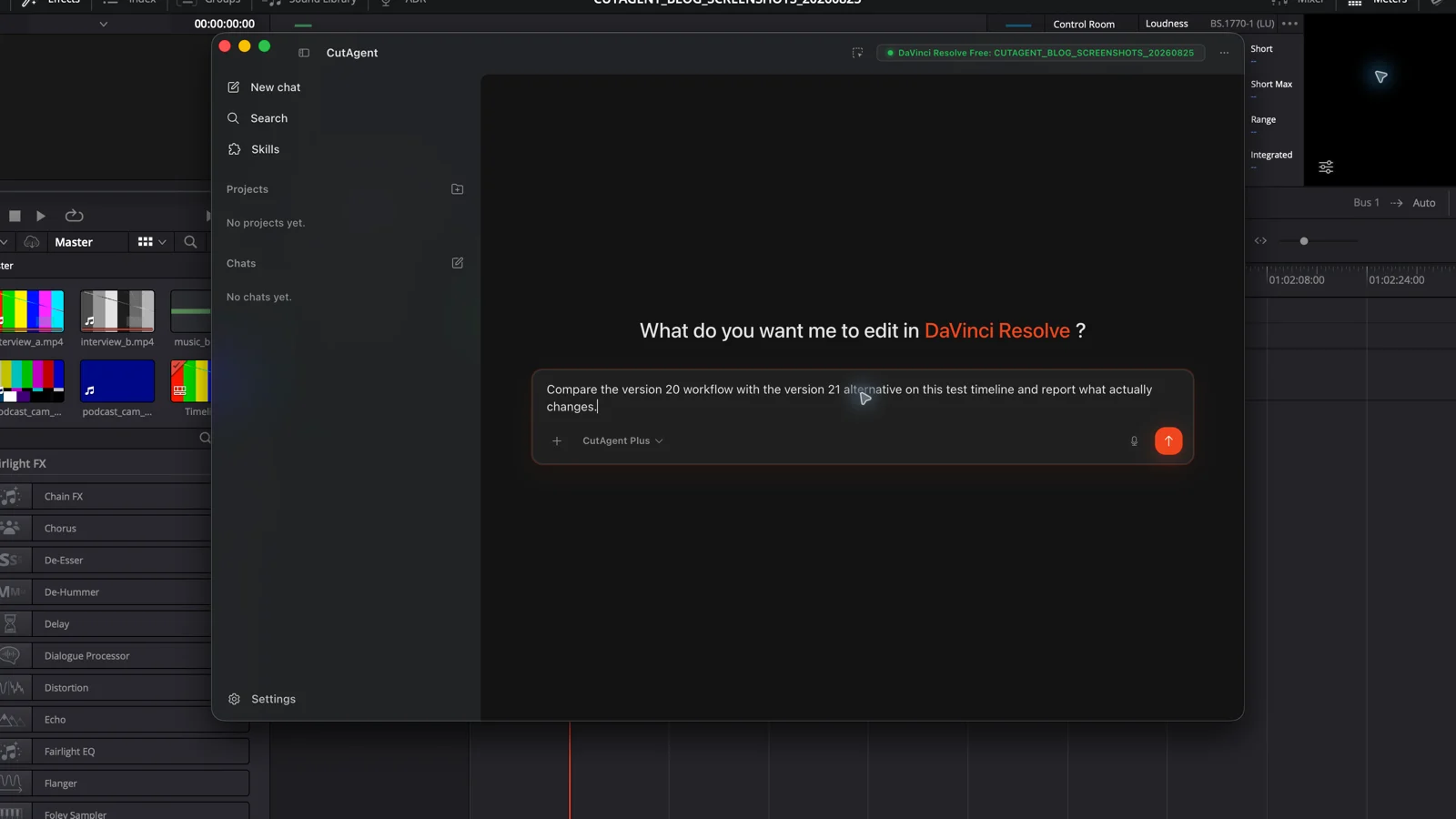
A major version number does not erase the Free and Studio split. Blackmagic Design's product comparison says DaVinci Resolve Studio adds the DaVinci AI Neural Engine, along with additional native effects and other Studio capabilities. The version 20 guide labels the headline AI workflows in this comparison as Studio-only. The version 21 product page likewise places the advanced AI toolset with DaVinci Resolve Studio 21.
| Current setup | Proposed move | AI consequence |
|---|---|---|
| DaVinci Resolve 20 Free | DaVinci Resolve 21 Free | You receive the version 21 Free update, but the Studio DaVinci AI Neural Engine tools remain outside the Free edition |
| DaVinci Resolve 20 Free | DaVinci Resolve Studio 21 | Both boundaries change: you gain the Studio toolset and the new version 21 AI additions |
| DaVinci Resolve Studio 20 | DaVinci Resolve Studio 21 | Your version 20 Studio AI baseline remains and the version 21 AI categories are added |
| DaVinci Resolve Studio 20 | Stay on version 20 during an active production | You keep the version 20 AI workflows and defer version 21 migration risk until the project has a safe test window |
Check the current Blackmagic Design feature matrix and the installed application's available controls before committing a workflow. Hardware, operating system, media type, analysis requirements, and project state can affect whether a documented tool is usable on a particular workstation.
Upgrade when one version 21 job recurs often enough
| Your recurring work | Version 20 position | Version 21 test | Decision signal |
|---|---|---|---|
| Long-form documentary or unscripted source search | Metadata, bins, transcription, and manual visual search | Run AI IntelliSearch queries for ten known objects, lines, and people | Upgrade if relevant known shots are found reliably enough to change real source-review work |
| Scratch voiceover, localization preparation, or approved synthetic voice work | Recorded voiceover and existing dialogue tools | Test AI Speech Generator on names, numbers, emotion, timing, and required languages | Upgrade only with consent, acceptable performance, and a clear approval and disclosure process |
| Slate-heavy dailies and metadata entry | Manual logging or existing metadata workflows | Compare AI Slate Finder and Slate ID against a verified slate log | Upgrade if extraction accuracy and exceptions fit the assistant editor's correction workload |
| Slight focus errors or motion-blurred inserts | Existing sharpening, scaling, and restoration paths | Compare AI UltraSharpen and AI Motion DeBlur on representative problem shots | Upgrade if moving output preserves real texture and introduces fewer artifacts than the version 20 route |
| Beauty, de-aging, or synthetic focus work | Masks, grading, Fusion, and external VFX workflows | Test face and CineFocus tools through occlusion, profiles, hair, shadow, and shot movement | Upgrade if the result holds through the entire shot and meets creative, consent, and client requirements |
| Multicam, script assembly, animated captions, and starting mixes | Version 20 already introduced the relevant AI first-pass tools | Retest those existing tools only if version 21 release notes describe a needed change | Do not upgrade for a capability you already have unless another version 21 benefit justifies migration |
Run the upgrade test outside the active project
- Duplicate or export a representative test project. Preserve the version 20 production project and its backups.
- Choose ten to twenty clips that include the normal case and the failures most likely to matter: occlusion, accents, mixed lighting, motion blur, noisy slates, or similar faces.
- Write the acceptance criteria before opening the new tool. Include quality, missed results, false positives, corrections, analysis time, render behavior, and handoff requirements.
- Test one version 21 workflow at a time and preserve the settings and result timeline. Do not mix a software migration with several new editorial procedures in one trial.
- Open, save, close, and reopen the test project. Check media, grades, Fusion comps, audio, captions, cache assumptions, renders, and collaboration paths.
- Decide whether to migrate new projects, selected workstations, or the whole facility. An active production does not need to be the first compatibility test.
Evaluate DaVinci Resolve Studio 21 for our documentary source-search workflow without modifying the production project. Use the duplicate test project and the approved list of ten known shots. Record each AI IntelliSearch query, expected clip, returned relevant clips, false positives, missed clips, analysis requirements, and correction time. Compare the result with the existing version 20 metadata and transcript search process. Do not recommend migration until project reopen, render, and handoff checks pass.
Stay on version 20 when the version 21 addition has no owner
DaVinci Resolve Studio 21 is a meaningful AI expansion for teams that need semantic media search, generated speech, slate extraction, synthetic focus or face work, and additional restoration options. DaVinci Resolve Studio 20 already covers many high-value first passes in assembly, multicam, subtitles, audio, masking, and scaling.
Stay on version 20 during a critical delivery when nobody has time to qualify projects, plugins, hardware, collaboration, renders, and the exact new workflow. Move when a named editor, assistant, colorist, or engineer owns the test and can show which version 21 result passed.
For a feature-by-feature explanation of the newer release, continue to DaVinci Resolve 21 AI features explained. Use this comparison when the question is narrower: does one version 21 addition solve enough real version 20 work to justify migration?
Sources and further reading
- DaVinci Resolve 20 New Features Guide - Blackmagic Design. Accessed August 25, 2026.
- DaVinci Resolve 21 New Features Guide - Blackmagic Design. Accessed August 25, 2026.
- DaVinci Resolve 21: What's New - Blackmagic Design. Accessed August 25, 2026.
- DaVinci Resolve product and edition overview - Blackmagic Design. Accessed August 25, 2026.