DaVinci Resolve auto subtitles: Free vs Studio
The edition difference is generation. Studio includes speech-to-subtitle transcription; Free needs timed text from another source, then uses DaVinci Resolve's subtitle workflow for the edit and delivery.
Short answer
Short answer
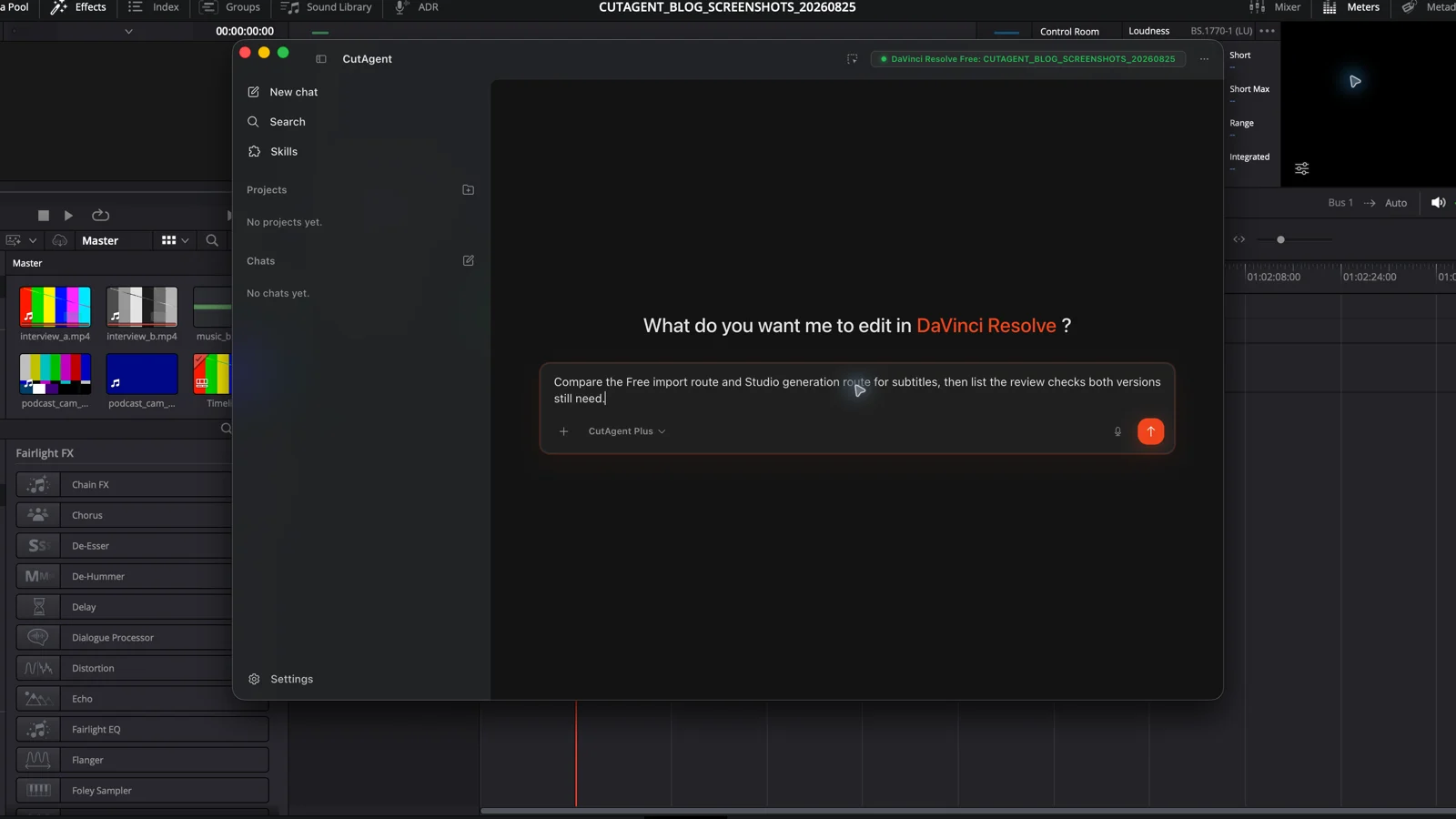
DaVinci Resolve Studio includes native speech-to-subtitle generation through Create Subtitles from Audio, originally introduced by Blackmagic Design as Auto Caption for Studio. DaVinci Resolve Free does not provide that native transcription step. Free can still import timed subtitle files such as SRT, place them on a subtitle track, edit and style cues, render subtitles into the video, or export subtitle data. Choose Studio when you want generation from timeline audio inside DaVinci Resolve; choose Free when you already have a reviewed timed subtitle file or can create one elsewhere.
The edition difference is where the timed text comes from
Both editions can take part in a professional subtitle workflow. DaVinci Resolve Studio can analyze timeline speech and create the first subtitle track inside the application. DaVinci Resolve Free starts after transcription: import a timed subtitle file or create cues manually, then edit, style, and deliver them in DaVinci Resolve.
Blackmagic Design introduced Auto Caption in DaVinci Resolve 18.5 and labeled it Studio only. The current DaVinci Resolve product page continues to list text-based editing among Studio features. Blackmagic's current Edit-page documentation separately describes subtitle import, manual creation, track styling, burn-in, and timed-text export as the general subtitle toolset.
| Capability | DaVinci Resolve Free | DaVinci Resolve Studio |
|---|---|---|
| Create subtitles from timeline speech inside DaVinci Resolve | No native speech-to-subtitle generation | Yes, through Create Subtitles from Audio or Auto Caption wording used by the installed version |
| Import timed subtitle files | Yes | Yes |
| Create and edit subtitle cues manually | Yes | Yes |
| Use multiple subtitle tracks and track styling | Yes | Yes |
| Render subtitles into picture | Yes | Yes |
| Export subtitle data | Yes, using the formats and options available in the installed version | Yes, using the formats and options available in the installed version |
| Text-based editing from transcription | No | Yes |
Choose Free or Studio from the source material
| Your starting point | Recommended path | Reason |
|---|---|---|
| You already have an approved SRT or another supported timed-text file | DaVinci Resolve Free is enough for the subtitle-track stage | The transcription and timing work is already present |
| You need DaVinci Resolve to transcribe the current timeline audio | Use DaVinci Resolve Studio | Native subtitle generation is a Studio feature |
| You use DaVinci Resolve Free and can create timed text with an approved external service or local tool | Generate and review the file outside DaVinci Resolve, then import it | Free can handle the subtitle track after generation |
| You need transcript-driven source or timeline editing, not only subtitles | Use DaVinci Resolve Studio | Blackmagic Design lists text-based editing as a Studio capability |
| You only need a few cues | Create them manually in either edition | A transcription stage may add more setup than the small task needs |
Do not upgrade solely because a tutorial calls subtitle editing an AI feature. Check the missing step. If the file already contains accurate text and timing, Free can do the remaining track work. Studio earns its place when the source is speech and you want DaVinci Resolve to produce the timed first pass.
Studio workflow: generate from the final timeline audio
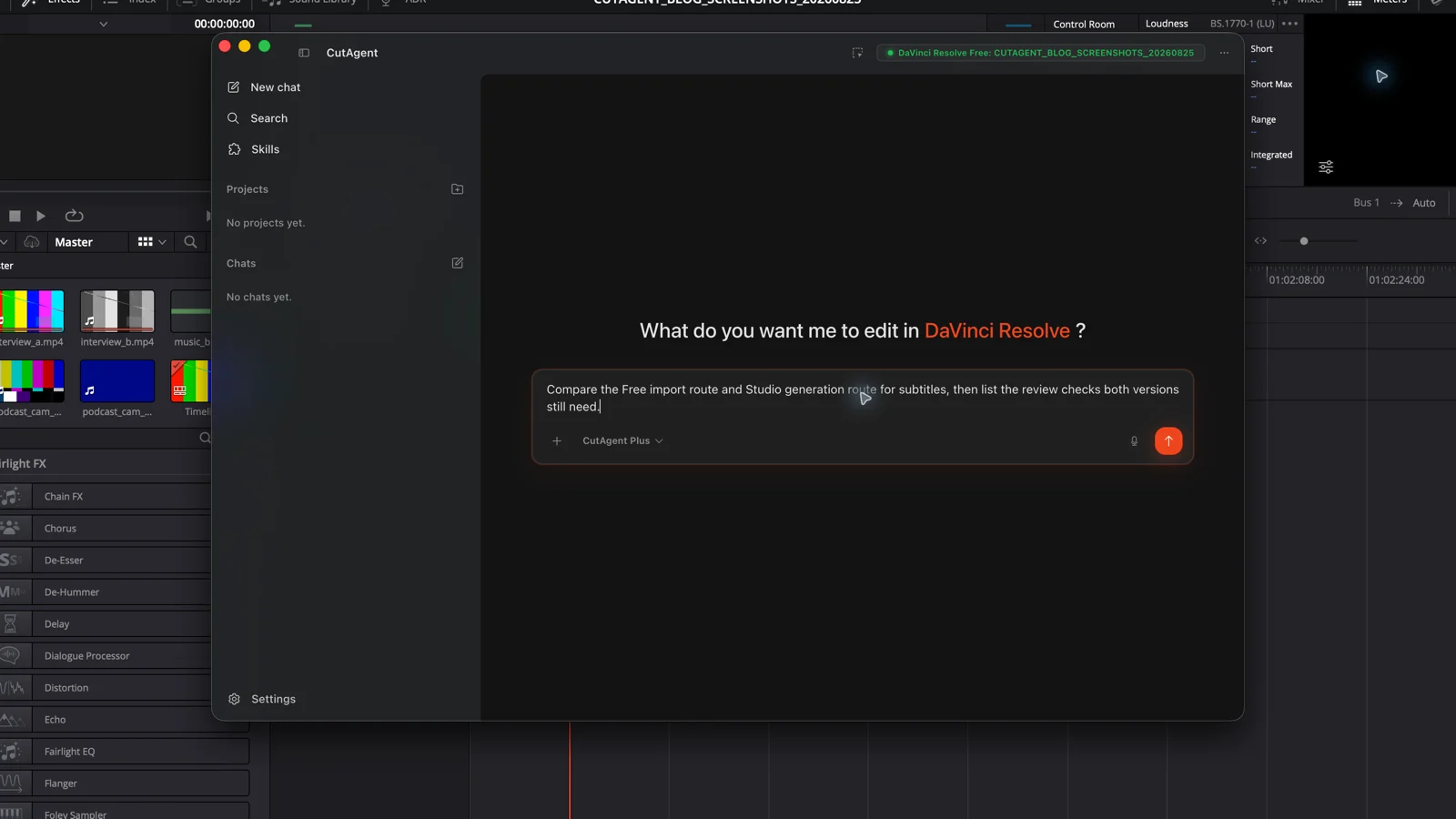
- Open the exact delivery timeline and confirm its revision, frame rate, start timecode, spoken language, and intended range.
- Mute duplicate dialogue, scratch microphones, guide audio, or alternate-language tracks that should not enter transcription. Record what you muted so the program mix can be restored.
- Set In and Out points for a short representative test, or clear the range when the full timeline is ready.
- Run Create Subtitles from Audio or the Auto Caption command shown in your DaVinci Resolve Studio version. Choose the language and available caption controls.
- Restore the intended audio state, then correct text and timing on the generated subtitle track.
Blackmagic Design's Auto Caption documentation calls out overlapping dialogue on several tracks as a common failure case. A short test catches the wrong language, duplicate speech, unsuitable line length, and poor segmentation before the application analyzes a long program.
For detailed generation controls and correction steps, use the DaVinci Resolve Auto Caption workflow. The edition decision should be settled before that process begins.
Free workflow: import a timed subtitle file
- Export the locked reference audio or picture with the correct start timecode for the approved transcription method.
- Create timed subtitles outside DaVinci Resolve Free. Review names, numbers, jargon, omissions, language, and the file's timing before import.
- Import the supported timed-text file into the Media Pool, then place it on a new subtitle track in the intended timeline.
- Compare the first, middle, last, fastest, and speaker-change cues against playback. Correct any offset before styling the full track.
- Set the track style, then run the same text, timing, picture, and delivery review used for a Studio-generated track.
An external generator creates another handoff boundary. Confirm whether media or audio leaves the workstation, who may process it, which language is supported, and whether the returned file preserves the correct time base. Those answers come from the chosen service or tool, not from DaVinci Resolve Free.
How CutAgent fits without hiding the edition boundary
CutAgent supports DaVinci Resolve 20 or later in Free and Studio on macOS and Windows, but the available operation can still depend on the DaVinci Resolve edition. In a caption workflow, the editor gives the deliverable brief in the CutAgent desktop app, CutAgent uses supported local editing operations, and the editor inspects the subtitle track and export in DaVinci Resolve.
Inspect this machine and the active DaVinci Resolve timeline without changing it. Report the exact DaVinci Resolve version and edition, whether native speech-to-subtitle generation is available, the existing subtitle tracks, timeline language, frame rate, and delivery range. If generation is unavailable, tell me which timed subtitle formats this installed version can import. Stop before creating or importing captions.
Run that preflight before writing the production brief. It turns a vague Free-versus-Studio assumption into a capability decision tied to the workstation that will perform the job.
Sources and further reading
- DaVinci Resolve Edit page: subtitles and closed captioning - Blackmagic Design. Accessed August 25, 2026.
- DaVinci Resolve Studio product and edition overview - Blackmagic Design. Accessed August 25, 2026.
- DaVinci Resolve product overview and Studio feature summary - Blackmagic Design. Accessed August 25, 2026.
- DaVinci Resolve 18.5 New Features Guide: Auto Caption - Blackmagic Design. Accessed August 25, 2026.
- DaVinci Resolve 21 New Features Guide - Blackmagic Design. Accessed August 25, 2026.
- CutAgent product overview and compatibility FAQ - CutAgent. Accessed August 25, 2026.