DaVinci Resolve proxy workflow: link, verify, and relink safely
A proxy is safe only when DaVinci Resolve can treat it as the same shot. Match the media identity before linking, verify the association after linking, and test the return to originals before the edit becomes expensive to repair.
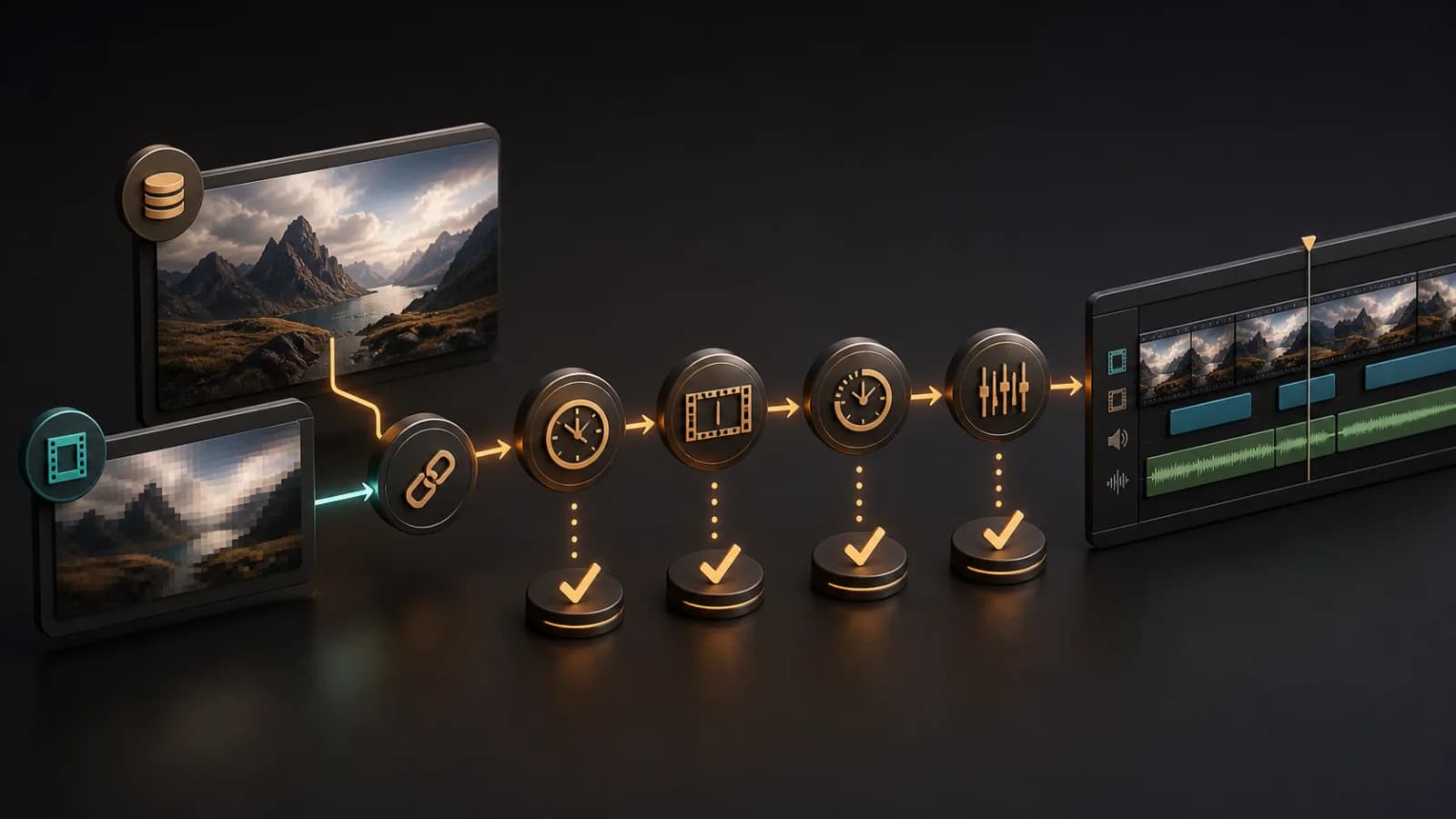
Short answer
Short answer
For a safe DaVinci Resolve proxy workflow, keep the camera originals as the primary media and attach lower-resolution files as proxies. Before linking, confirm that each pair represents the same frames: duration, frame rate, start timecode, audio layout, and picture geometry must agree. Link one canary first, verify that DaVinci Resolve reports the intended proxy path and resolution while the original path stays unchanged, then play the beginning, middle, and end. Unlink that canary and confirm the proxy path clears before relinking or expanding the batch. A filename match or accepted request alone is not proof.
Define the media identity before generating proxies
The proxy and camera original must describe the same shot in the same time domain. Compression, resolution, and storage location may change. Frame identity cannot. If the pair starts at a different timecode, contains a different number of frames, or carries a different audio structure, the edit may appear healthy until relink or conform.
| Check | What must stay consistent | Failure you are preventing |
|---|---|---|
| Duration | The same usable frame range | Short media, frozen frames, or an offline tail |
| Frame rate | The same interpreted source rate | Drift, speed changes, or wrong frame boundaries |
| Start timecode | The same source time reference | Incorrect reconform and mismatched source frames |
| Audio layout | Expected channel count, order, and sync | Missing channels or audio that no longer follows picture |
| Picture geometry | Matching aspect, orientation, and intended framing | Unexpected crops, rotation, or reframing at full resolution |
Choose a generation route that preserves the contract
Blackmagic Design documents a Proxy Generator workflow that watches folders, creates smaller files, and associates them with camera originals. DaVinci Resolve 21 can move proxy generation into background processing. Those conveniences do not remove the need to check the result, especially when proxies came from another application or another facility.
| Situation | Practical route | Extra check |
|---|---|---|
| You have originals and create proxies locally | Generate from the identified camera-original clips or a controlled watch folder | Confirm generation finished before moving or handing off files |
| A remote editor receives proxies first | Import the proxies, then link the matching full-resolution media when it arrives | Record the original proxy path and verify the clip still resolves after linking |
| Another application created the proxies | Treat every pair as untrusted until its timecode, duration, frame rate, audio, and geometry match | Test several long clips and every camera type, not one convenient sample |
| Media moves between systems | Preserve relative folder structure and a transfer manifest | Open the project on the receiving machine before the sending drive disappears |
Do not transcode away production metadata merely to make a smaller file. The proxy's job is responsive editorial playback while DaVinci Resolve keeps the relationship to the original media intact.
Link proxies, then verify the association
Linking is the midpoint, not the success condition. Start with one canary. Inspect its Media Pool properties afterward and confirm that the original file path remains the primary source while DaVinci Resolve reports the expected proxy resolution and exact proxy-media path. Then test actual playback from the edit before linking a batch.
- Select one canary clip whose camera, recorder, frame rate, and proxy recipe are representative.
- Record its Media Pool location, source path, proxy path, duration, frame rate, timecode, resolution, and audio channels.
- Link only that canary and confirm that DaVinci Resolve reports the intended proxy resolution and proxy-media path without changing the original file path.
- Play the beginning, middle, and end. Check lip sync, timecode, orientation, framing, and channel assignment.
- Unlink the canary and confirm that its proxy path clears, then relink it and repeat the readback before expanding the batch.
- Open timeline instances that include speed changes, reframes, transitions, multicam clips, or synced audio. These are more revealing than an untouched source clip.
A DaVinci Resolve background-generation request is only a request. Do not infer that a proxy file is ready or associated from an accepted response. Wait for the background job or external transcode to finish, then require the same Media Pool path readback and playback check used for manually supplied proxies.
Give CutAgent a bounded proxy brief
The useful automation is the inventory and verification around the link. Name the exact Media Pool bin, explain whether the current files are originals or proxies, and require readback. If any pair is ambiguous, the agent should stop rather than guess from similar basenames.
Inspect the clips in Media Pool bin Documentary / Day 03 and make no changes until you list each clip's current file path, proxy path, duration, frame rate, start timecode, resolution, and audio layout. Match the supplied proxy folder only when duration, frame rate, timecode, audio layout, and picture geometry agree. Stop on ambiguous or mismatched pairs. Link one canary from a single camera, verify that its proxy resolution and exact proxy-media path appear while its original file path remains unchanged, and review the beginning, middle, and end. Unlink it and confirm the proxy path clears, then relink and verify again. Do not link the rest until I approve the canary. Return every linked pair and every skipped clip with the reason.
The product path is editor → natural-language request in the CutAgent desktop app → supported local media operations and readback → visual and audio review in DaVinci Resolve. CutAgent can organize the checks; the editor approves whether the media pair is trustworthy. For a broader view of bounded automation, use the DaVinci Resolve automation decision framework.
Return to originals before finishing
Do the original-media test while there is still time to fix the handoff. Switch proxy handling to the camera originals, reopen the project if that matches the receiving workflow, and inspect the timeline before color, visual effects turnover, or final delivery.
- Confirm that representative timeline clips now report and display full-resolution media.
- Compare the first and last used frames on long takes, not only the slate.
- Check synced production audio and multicam angle changes for drift.
- Inspect transforms, stabilization, retimes, composites, titles, and reframes at delivery resolution.
- Render a short section with motion, dialogue, and a transition; inspect the exported file.
- Keep the proxy media available until the full-resolution project has opened and passed review on the finishing system.
If the relink changes content, timing, audio, or framing, stop the conform. Repair the media relationship before grading or delivery hides the cause under more work.
Hand off proof, not reassurance
A receiving editor needs enough evidence to reproduce the association. Include the project export or archive required by the job, the camera-original and proxy folder rules, the proxy recipe, a pair manifest, the DaVinci Resolve version, and the verification result. Note every exception.
If you want CutAgent to inventory and verify a proxy handoff, download the desktop app and start with one read-only bin audit. Link only after every intended pair has a defensible identity match.
Sources and further reading
- DaVinci Resolve 21 New Features Guide - Blackmagic Design. Accessed August 14, 2026.
- DaVinci Resolve product overview - Blackmagic Design. Accessed August 14, 2026.
- DaVinci Resolve Collaboration page - Blackmagic Design. Accessed August 14, 2026.
- CutAgent product overview - CutAgent. Accessed August 14, 2026.