Relink media in DaVinci Resolve without reconnecting the wrong files
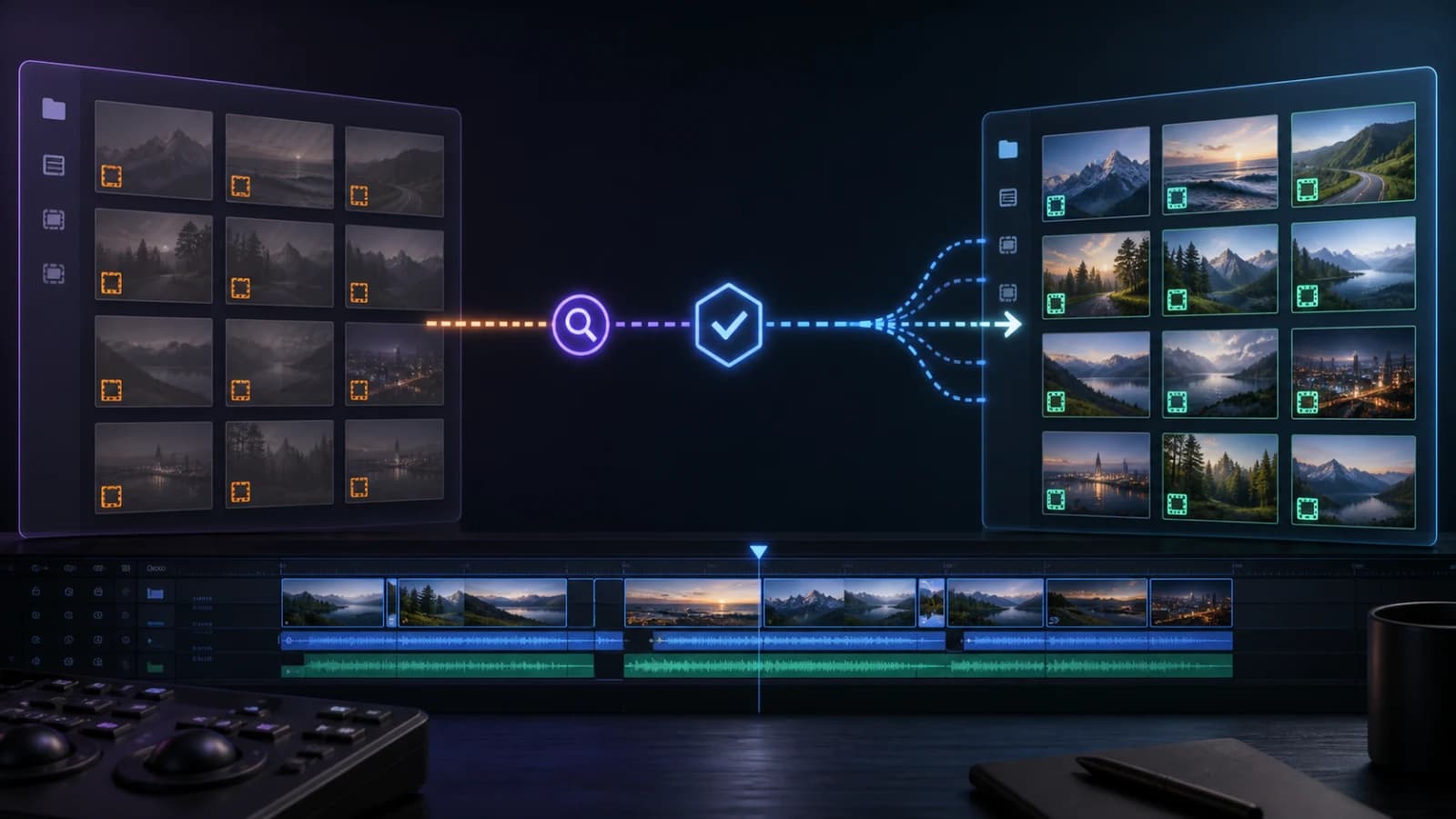
Relinking is safe only after you know what broke. Confirm the storage, compare the old and new paths, prove one representative clip, then expand the same mapping in controlled groups.
Short answer
Short answer
Do not start by relinking the whole project. First confirm that the expected drive is mounted and that the offline state was caused by a changed file path. Compare one clip's recorded path with the new location, relink one representative clip, then verify its picture, audio, starting timecode, duration, and use in the timeline. Expand the same mapping only when those checks agree.
Decide whether relinking is the right repair
DaVinci Resolve marks expected media as offline when its stored source path is no longer available. Blackmagic Design's Editor's Guide to DaVinci Resolve 20 names two common causes: the storage is unavailable, or the files moved to a different folder or drive. Those are path problems. A clip that stays offline while its path is valid may have a different cause, so pointing the project at another folder is not a universal fix.
| What you see | Check first | Do not assume |
|---|---|---|
| Many clips from one drive went offline together | Mount point, drive name, network volume, and folder availability | Every clip needs a new source mapping |
| Files were deliberately moved into a new folder tree | The exact old root and new root, including nested folders | Matching filenames prove matching media |
| Only one codec, camera format, or a few frames appear offline | Whether the file opens, the format is supported, and the problem follows the file | Relinking will repair decode, permission, cache, or damaged-file problems |
| Proxies are missing but original media remains online | Proxy linkage and proxy location | The original source path should be changed |
Write the path change before touching the project
A relink should express one testable mapping: this named source clip used to live here and now lives there. Preserve the folder structure when possible. Broad searches become risky when several backup, proxy, transcode, or camera-card trees contain the same basename.
- Read the offline clip's current file path and media metadata in the Media Pool.
- Confirm the expected storage is mounted under the correct name and location.
- Locate the intended source file outside the project and record its new absolute path.
- Check whether neighboring offline clips follow the same old-root to new-root pattern.
- Stop if the new tree contains ambiguous duplicates or changed filenames that need individual decisions.
The same Blackmagic Design guide recommends using DaVinci Resolve's Media Management when media must be moved after import. That keeps the move inside a media-aware workflow. Relinking is the recovery path after a source location has already become unavailable or changed.
Use one representative clip as a canary
Choose a clip that is used in the timeline and is easy to recognize. It should contain identifiable picture and audio, not a black frame, slate-only shot, or silent ambience. Testing that clip limits the consequence of a bad path while giving you enough evidence to judge the mapping.
Inspect the active DaVinci Resolve project and make no changes yet. Find the offline Media Pool clip interview_A_003.mov and report its current source path, duration, starting timecode, and where it is used. Preview relinking only that clip to /Volumes/Client_Archive/Project/Camera_A/interview_A_003.mov. Stop if the file is missing or the metadata conflicts. If the preview is unambiguous, ask before applying the relink. After approval, relink only that clip and verify the new path and timeline playback. Do not relink any other media.
The editor gives this instruction in the CutAgent desktop app. CutAgent can inspect Media Pool context and preview the requested one-clip relink through its supported local DaVinci Resolve workflow. After approval, the editor inspects the result in DaVinci Resolve. The preview proves that the requested file exists and makes the intended target explicit; it does not prove that the creative media is correct until the result is reviewed.
This is a narrower version of CutAgent's plan, execute, and verify model for DaVinci Resolve automation. Relinking deserves the smaller scope because a plausible wrong file can remain unnoticed until finishing.
Verify identity, not just online status
A thumbnail turning online answers only one question: DaVinci Resolve can access a file for that clip. Approval needs a stronger identity check in the Media Pool and at a timeline use.
| Check | What agreement looks like | Failure signal |
|---|---|---|
| Source path | The clip now points to the intended storage tree and file | It points into proxies, exports, backups, or another camera card |
| Technical identity | Duration, starting timecode, frame rate, and raster match the expected source | A same-named file has different bounds or format |
| Picture and audio | Recognizable frames and channels belong to the intended take | The shot, take, language, or microphone is wrong |
| Timeline context | Several points in an edited use play with the expected in and out content | The cut shifted, frames repeat, audio changed, or content no longer matches |
Expand only across a proven folder pattern
Once the canary passes, group clips by the same old root, new root, camera source, and media role. Relink one group, sample its results, then continue. Do not mix originals, proxies, optimized media, audio recorders, graphics, and exports merely because they sit under one project folder.
- Use the narrowest Media Pool selection or bin that represents one mapping.
- Sample the first, middle, and last clip from the group after relinking.
- Check at least one timeline use from every camera or recorder source.
- Keep unresolved clips offline and visible; do not force them into the closest-looking folder.
- Run a final project-wide offline-media check before export or handoff.
If your missing files are proxies, treat proxy attachment as a separate diagnosis. The CutAgent CLI workflow guide explains how an agent should inspect context, execute a narrowly scoped operation, and verify its result. Proxy attachment and source-media relinking are related, but they are not interchangeable operations.
Start with a read-only inventory
Your first useful action is a list: which clips are offline, which roots they expect, which storage is mounted, and which timelines use them. That inventory separates one clean path change from several unrelated failures before anything is written.
For a controlled inspection, download CutAgent and ask it to report one offline clip without making changes. Move to a preview and one-clip relink only when the expected and actual paths are explicit. A successful batch begins with evidence that the first file is the right file.
Sources and further reading
- The Editor's Guide to DaVinci Resolve 20 - Blackmagic Design. Accessed August 21, 2026.
- The Beginner's Guide to DaVinci Resolve 20 - Blackmagic Design. Accessed August 21, 2026.
- DaVinci Resolve training - Blackmagic Design. Accessed August 21, 2026.
- CutAgent product overview - CutAgent. Accessed August 21, 2026.