DaVinci Resolve YouTube Shorts workflow
A Short is a new edit, not a narrow crop of the master. Protect the source timeline, rebuild the opening for vertical viewing, and review every frame that competes with captions or YouTube controls.
Short answer
Short answer
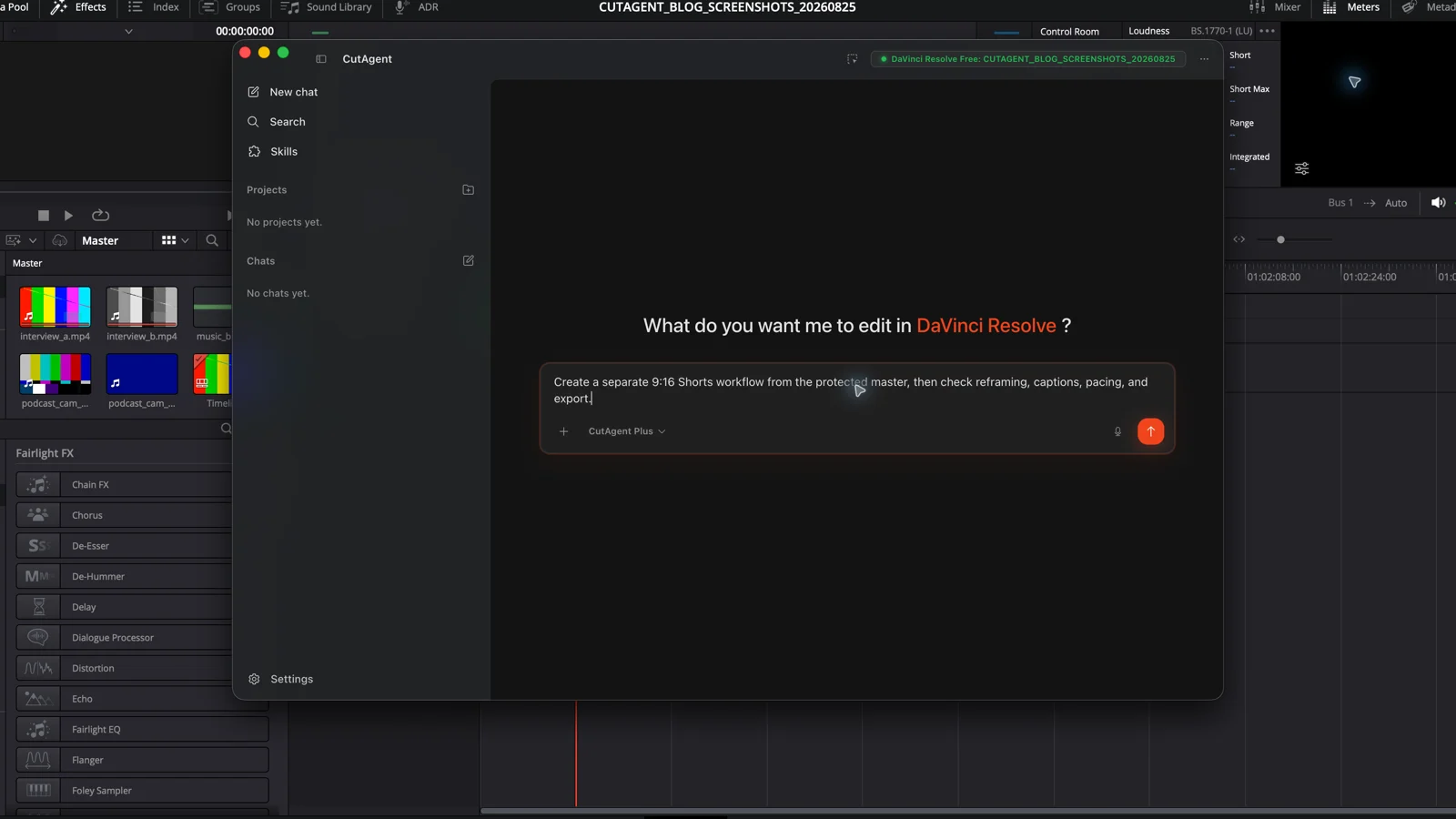
Duplicate the approved source edit in DaVinci Resolve, rename the copy for the Short, and give that timeline a vertical 9:16 resolution such as 1080 × 1920 with square pixels. Rebuild the opening and duration for the Short rather than preserving the long-form cut unchanged. Reframe every shot manually or use Smart Reframe in DaVinci Resolve Studio as a first pass, then check faces, hands, products, graphics, and camera movement. Add captions and graphics away from screen edges and likely YouTube interface controls, export a progressive MP4 with H.264 video and AAC audio at the source frame rate, and upload an unlisted or private test. YouTube currently classifies square or vertical uploads up to three minutes as Shorts, but duration eligibility does not make a weak vertical edit work.
Define the Short before changing the frame
Write the Short's promise in one sentence and identify the exact source range that earns it. A useful brief names the viewer question, first visible beat, payoff, target duration, required call to action, caption language, protected brand assets, and delivery account. Cropping the full master before making these decisions creates a tall version of a long-form edit, not a Short.
| Decision | Name it before cutting | Failure it prevents |
|---|---|---|
| Viewer promise | The one question, reveal, demonstration, or reaction this Short delivers | A montage with no reason to keep watching |
| Opening | The first intelligible picture and line, without relying on a long setup | A title card or greeting that consumes the strongest seconds |
| Source boundary | Exact master timeline and approved source ranges | Pulling from an old cut or unapproved performance |
| Format | Vertical timeline, caption system, graphics, music rights, and export target | Discovering late that text, art, or audio cannot be delivered |
| Proof | Rendered-file inspection plus an unlisted or private YouTube upload | Approving only the DaVinci Resolve viewer |
YouTube's current Shorts eligibility guidance says square or vertical videos up to three minutes are categorized as Shorts when they meet the documented upload timing and channel conditions. Treat three minutes as a platform boundary, not a target length. Stop when the idea is complete.
Create a separate vertical timeline
Duplicate the approved horizontal timeline or create a new timeline from selected source material. Rename it clearly, for example Product reveal Short 9x16 v01. Disable Use Project Settings for that timeline when needed, choose a vertical resolution, keep square pixels, and preserve the source frame rate unless the delivery has a specific reason to change it. A common working choice is 1080 × 1920. YouTube requires a square or vertical aspect ratio for Shorts; it does not mandate that one raster in its upload rule.
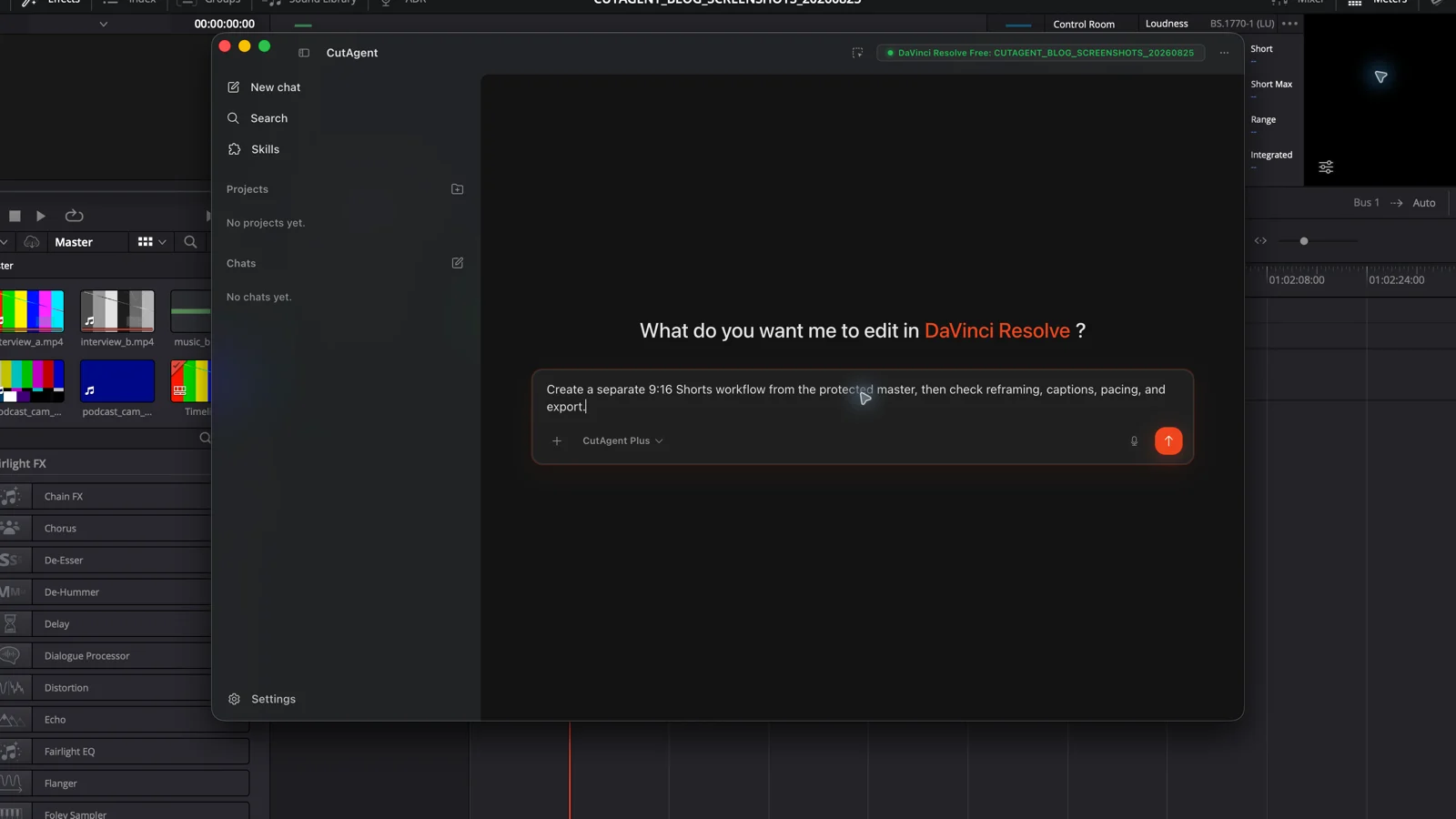
Blackmagic Design's DaVinci Resolve 21 overview documents square and vertical presets in project and timeline settings for social platforms including YouTube Shorts. The older official Editor's Guide also documents custom timeline dimensions and the Use vertical resolution option. Check the actual pixel dimensions shown after choosing a preset; a label is less useful than the resulting raster.
- Keep the approved 16:9 timeline untouched as the source of truth.
- Use a unique vertical timeline name and version number.
- Confirm frame rate, timeline start, audio mapping, and color management before reframing.
- Check that generators, adjustment clips, compound clips, Fusion graphics, and nested timelines follow the new frame.
Rebuild the opening and pacing for vertical viewing
Make the first pass about story, not scale. Watch the selected material without the long-form intro. Bring the first clear action, claim, conflict, result, or surprising image forward. Remove explanations that only make sense in the full video, but keep enough setup that the payoff remains honest.
| Beat | Editing question | What to protect |
|---|---|---|
| First frame | Can the viewer understand the subject before reading a description? | A face, action, object, or result with enough visual scale |
| Opening line | Does it create a specific question or deliver immediate context? | Meaning, speaker intent, and the clean start of the first word |
| Middle | Does each beat add evidence, change, escalation, or necessary clarity? | Useful pauses, reactions, continuity, and room for captions |
| Payoff | Does the Short answer the promise it made? | The decisive image or line long enough to register |
| Exit | Does the ending land without a dead tail or clipped final word? | A clean audio finish and any required call to action |
Do not turn every breath into a jump cut. Vertical viewing does not cancel performance, comic timing, or comprehension. If shortening a pause creates a head-position jump, broken hand movement, or abrupt room-tone change, restore it or cover the join with a relevant cutaway.
Reframe shot by shot, then watch the movement
A global center crop fails as soon as the subject moves, two speakers separate, or the product sits outside the middle third. Inspect every shot in the vertical viewer. Position and scale manually when the composition is stable. Keyframe the framing when the subject moves or the important detail changes.
DaVinci Resolve Studio includes Smart Reframe as a first pass. Blackmagic Design's Smart Reframe guide recommends duplicating the timeline, setting the target aspect ratio, choosing a crop-oriented mismatched-resolution setting, and analyzing selected clips in the Inspector. DaVinci Resolve 20.1 added Auto, Pan Only, and Tilt Only modes. Use the narrowest mode that matches the motion, then review the result; subject tracking does not know which object carries the story.
| Shot type | Vertical treatment | Failure to catch |
|---|---|---|
| Single talking head | Keep eyes, mouth, and gesture comfortably framed with room for captions | Automatic framing chases small head movement and makes the crop float |
| Two-shot | Choose the active speaker, split the moment into singles, or use a designed stacked layout | Both faces become too small or one speaker is cut at the edge |
| Product or screen detail | Center the exact control, label, or action the dialogue refers to | The face remains centered while the demonstrated detail disappears |
| Fast movement | Keyframe or constrain reframing, then watch at normal speed | The crop lags, overshoots, or creates a distracting lateral swing |
| Graphic or lower third | Rebuild for 9:16 rather than shrinking a 16:9 composition | Type becomes tiny, clipped, or hidden by platform controls |
Place captions for the video and the YouTube interface
Keep captions short enough to read over motion and place them where they do not cover the subject, product, lower third, or call to action. Do not use one fixed pixel margin as a universal YouTube safe-area specification. Shorts controls and labels vary by surface and device. Build conservative space around the edges, then check the uploaded Short in the actual mobile interface.
YouTube's Shorts enhancement guide says its editor shows guides for areas where buttons, comments, descriptions, or other viewer elements may appear and warns when an overlay approaches a non-safe edge. Those guides are the current platform proof. For externally rendered graphics, upload an unlisted or private test and inspect the same conflict zones yourself.
- Keep essential text away from the extreme top, bottom, and side edges.
- Reserve the right side for likely engagement controls unless a current preview proves the layout is clear.
- Avoid placing a call to action where the description or channel information can cover it.
- Check every caption over the busiest frame in its cue, not only over the first frame.
- Read the full caption pass at playback speed with sound both on and off.
Use the DaVinci Resolve caption workflow to choose between a native subtitle track and designed Text+ captions. For Shorts, burned-in designed captions are common, but the client or channel may also require subtitle data. Approve one text-and-timing source before producing both.
Mix for a small speaker without guessing at loudness
Make dialogue intelligible on a phone speaker, but keep the approved delivery specification in charge. Listen for clipped edits, room-tone pumping, aggressive noise reduction, music masking consonants, and effects that vanish at low playback level. Do not invent a universal Shorts loudness target when the channel, client, or campaign has its own master requirement.
| Pass | Listen for | Typical correction |
|---|---|---|
| Dialogue | Every word understood at low phone volume | Repair the edit, automation, EQ, or music balance rather than relying only on captions |
| Joins | Breaths, consonants, ambience, and reverb tails survive each cut | Restore padding, add appropriate room tone, or choose another boundary |
| Music | Rights are clear and the track supports rather than masks the spoken idea | Replace, lower, automate, or remove the cue before export |
| Ending | The last word and music tail finish intentionally | Extend the timeline or create a deliberate cut rather than leaving a clipped tail |
Export, inspect, and test the actual Short
On the Deliver page, confirm the vertical raster, source frame rate, full timeline range, audio output, caption choice, file name, and destination. YouTube's recommended upload settings list MP4, H.264 video, progressive scan, AAC-LC audio, and the recorded frame rate as a standard upload path. Preserve the video's native aspect ratio and do not bake black bars or side padding into the file; YouTube adapts its player to vertical and square uploads.
| Surface | Inspect | Reject when |
|---|---|---|
| Rendered file | Raster, duration, first and last frame, captions, color, audio, and sync | Any deliver setting differs from the approved vertical timeline |
| Desktop player | No black bars encoded into picture and no missing fonts, frames, or audio | The local master already contains a visible technical defect |
| Unlisted or private YouTube upload | Shorts classification, processed quality, mobile crop, control overlap, captions, and sound | YouTube processing or interface placement changes the intended result |
| Channel details | Title, description, audience, visibility, rights, and scheduled state | The video is correct but the publication settings are not |
Keep the test upload unlisted or private until picture, controls, captions, music rights, and metadata pass. Watch once without touching the screen and once while the YouTube interface is visible. Approve the encoded upload, then change visibility through the channel's normal publishing process.
Sources and further reading
- Understand three-minute YouTube Shorts - YouTube Help. Accessed August 25, 2026.
- Upload YouTube Shorts from a computer - YouTube Help. Accessed August 25, 2026.
- Enhance your Shorts: visual guides and non-safe areas - YouTube Help. Accessed August 25, 2026.
- YouTube recommended upload encoding settings - YouTube Help. Accessed August 25, 2026.
- DaVinci Resolve 21: vertical resolution for social media - Blackmagic Design. Accessed August 25, 2026.
- DaVinci Resolve 20.1 New Features Guide: Smart Reframe modes - Blackmagic Design. Accessed August 25, 2026.
- DaVinci Resolve 17 New Features Guide: Smart Reframe workflow - Blackmagic Design. Accessed August 25, 2026.