How to automate DaVinci Resolve workflows
The reliable way to automate an edit is to design the acceptance check first, run a small sample, reconcile the result, and only then scale the batch.
Short answer
Short answer
To automate a DaVinci Resolve workflow, define the exact target and acceptance criteria, inspect the live project without changing it, isolate the output, preview the planned changes, run a small canary, execute the bounded batch, reconcile every requested item against readback, and review picture and sound before promoting the result. Start with one repeated workflow. Do not scale it until failures stop clearly and the editor can account for every change.
1. Write the acceptance contract before the instruction
Automation starts with the finish line. Before choosing a preset, script, agent, or native feature, write down what must be true when the run ends. This prevents a fluent instruction from hiding an untestable result.
| Field | Example |
|---|---|
| Input | Approved client-notes CSV with 24 rows |
| Target | Project Atlas launch, timeline Social 16x9 v12, 25 fps |
| Allowed change | Create yellow timeline markers from valid rows |
| Protected state | Clips, tracks, grades, audio, existing markers, and source timeline remain unchanged |
| Stop conditions | Wrong project, wrong timeline, frame-rate mismatch, duplicate note ID, invalid timecode, or existing marker collision |
| Evidence | Requested, created, skipped, and failed counts plus marker names and timecodes read back from the target timeline |
| Approval | Editor opens sampled markers against picture and accepts or rejects the version |
Keep the contract short enough to use during review. If the team cannot state the target, protected state, stop conditions, and evidence, the workflow is still a loose request rather than an automation specification.
If you have not chosen a task yet, the DaVinci Resolve automation task guide covers which work is repeatable and reviewable. This guide assumes the task has already passed that decision.
2. Inventory the live project without changing it
Run a read-only preflight against the project that is actually open. File names and handoff notes go stale; the active project state tells you whether the assumed timeline, frame rate, media, tracks, and existing objects are present now.
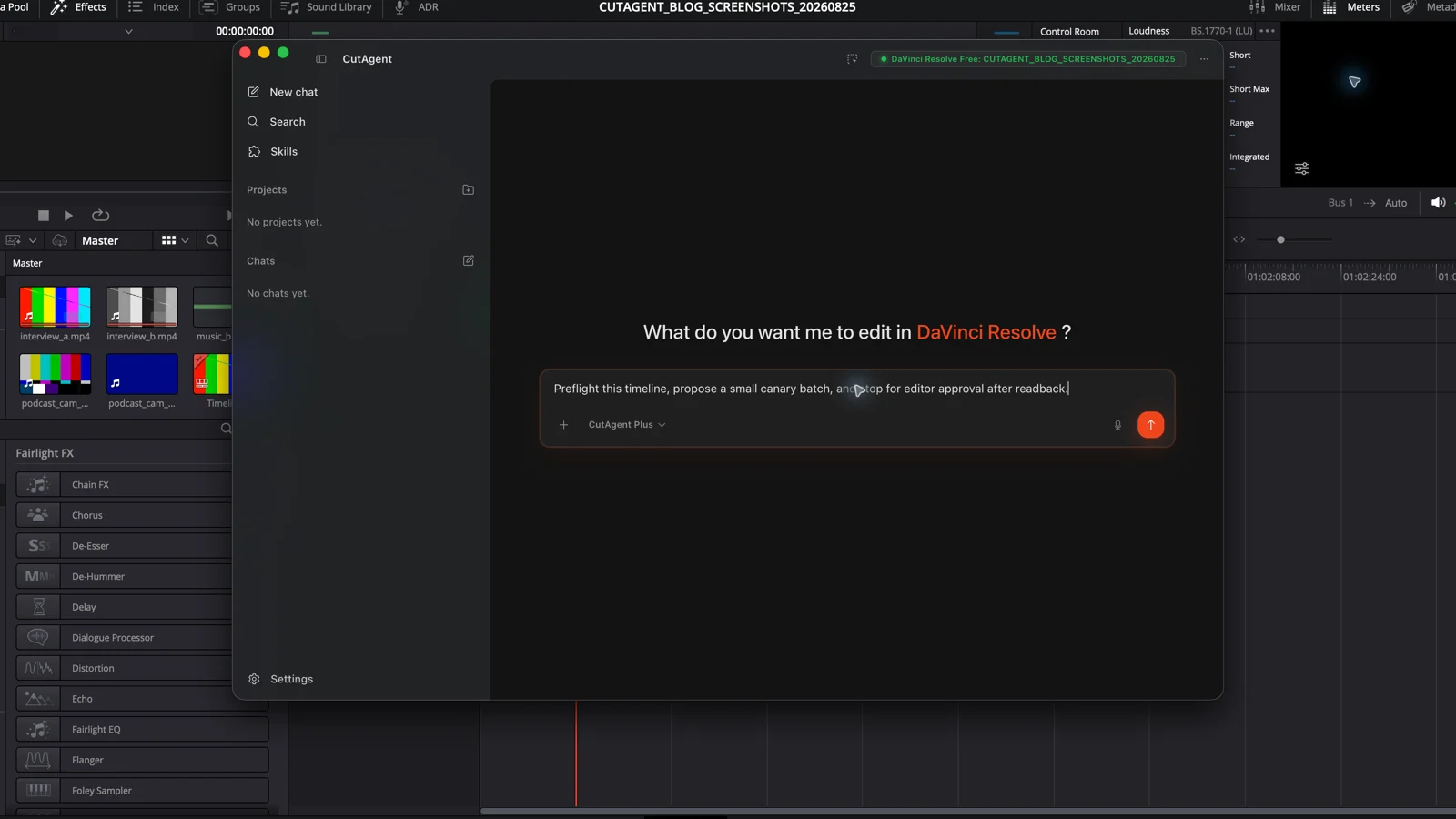
Inspect the open DaVinci Resolve project without changing it. Confirm the project is Atlas launch and the active timeline is Social 16x9 v12 at 25 fps. Report the timeline duration, track layout, offline-media count, and existing timeline markers. Compare those facts with the attached 24-row marker brief. Stop and list every mismatch; do not prepare or create markers yet.
A mismatch is a useful result. Fix the brief or open the intended version before continuing. Do not let the automation silently choose a similarly named timeline, convert timecodes, replace an existing object, or guess which media item the handoff meant.
3. Isolate the output and preview the change manifest
Give a mutating run its own output boundary. For timeline edits, that usually means a duplicate or a clearly versioned destination. For generated files, use a new export name and destination. For metadata work that cannot be isolated, narrow the first batch and preserve a recoverable project state before running it.
Preview a change manifest before execution. It should name every proposed target and operation in ordinary editing language: create 24 markers on one timeline, change zero clips, touch zero tracks, overwrite nothing. A count without identities is weak; a list without totals is hard to reconcile. Ask for both.
4. Run a canary before the full batch
A canary is a small, representative slice of the real job. Choose examples that test the workflow's edges, not merely the easiest rows. For the marker brief, use an early note, a note near an edit point, and the last valid timecode.
- Run the three proposed markers on the isolated timeline.
- Read back each marker's name, color, timecode, duration, and timeline identity.
- Open those positions in DaVinci Resolve and compare them with the original client notes.
- Confirm that clip count, track layout, duration, existing markers, and other protected state did not change.
- Stop if any value differs. Correct the contract or implementation, reset the isolated output, and rerun the canary from a known state.
The canary tests more than syntax. It proves that the automation understands the project's time basis, marker scope, duplicate policy, and reporting contract before the remaining rows increase the cost of a mistake.
5. Execute the bounded batch and reconcile the ledger
Approve one bounded batch only after the canary passes. Freeze the input during the run; if the client sends revised notes, finish or cancel the current batch before introducing a second source of truth.
The three-marker canary on Social 16x9 v12 automation passed. Process only the remaining approved rows from client_notes_2026-08-24.csv. Create yellow timeline markers on this timeline only. Preserve all existing markers and every other project object. Stop on a duplicate note ID, invalid timecode, collision, target change, or unsupported operation. Return requested, created, skipped, and failed counts, then read back every newly created marker with its note ID, name, color, and exact timecode.
Reconcile the ledger before looking at a celebratory success message. Requested should equal created plus deliberately skipped plus failed. Each skipped or failed row needs an identity and reason. Readback should account for every created item on the intended timeline. If the arithmetic or identities do not close, the run is incomplete.
| Check | Pass condition |
|---|---|
| Input accounting | Every requested row is created, skipped with a reason, or failed with a reason |
| Target binding | Project and timeline identity match the acceptance contract |
| Object readback | Every reported creation exists with matching values |
| Protected state | Named objects and counts outside scope remain unchanged |
| Exception queue | Ambiguous or invalid rows remain unresolved rather than guessed |
6. Review the edit, then promote or reject it
Structured readback proves project state, not editorial correctness. Open the isolated result in DaVinci Resolve. Watch or listen around the first item, the canary edge cases, every exception, and a sample from the rest of the batch. For captions, graphics, grades, audio, transitions, or cuts, inspect the rendered or monitored result that the audience would experience.
- Promote the version only when the acceptance contract and editorial review both pass.
- Reject the version when target binding, accounting, protected state, or output review fails.
- Keep unresolved exceptions visible; do not bury them in a general completion summary.
- Preserve the source version and run report until the deliverable is accepted.
Blackmagic Design's official training separates editing, color, Fairlight, Fusion, and delivery into distinct working contexts. Your acceptance pass should follow the same reality: a database value or timeline count cannot replace watching picture, listening to the mix, checking graphics at delivery resolution, or opening the rendered file.
7. Turn a passing run into a maintained runbook
Save the contract, preflight, canary set, batch instruction, and review checklist together. Record the DaVinci Resolve version, edition, operating system, automation tool version, and any preset or template identity. Those details tell the next editor what was actually proven.
Retest the canary when the application, automation layer, project template, delivery specification, or input format changes. A familiar button or command name can survive an update while its supported parameters, edition boundary, or output behavior changes. Blackmagic Design publishes current feature guides and support documentation; use them to verify version-specific behavior rather than carrying assumptions forward.
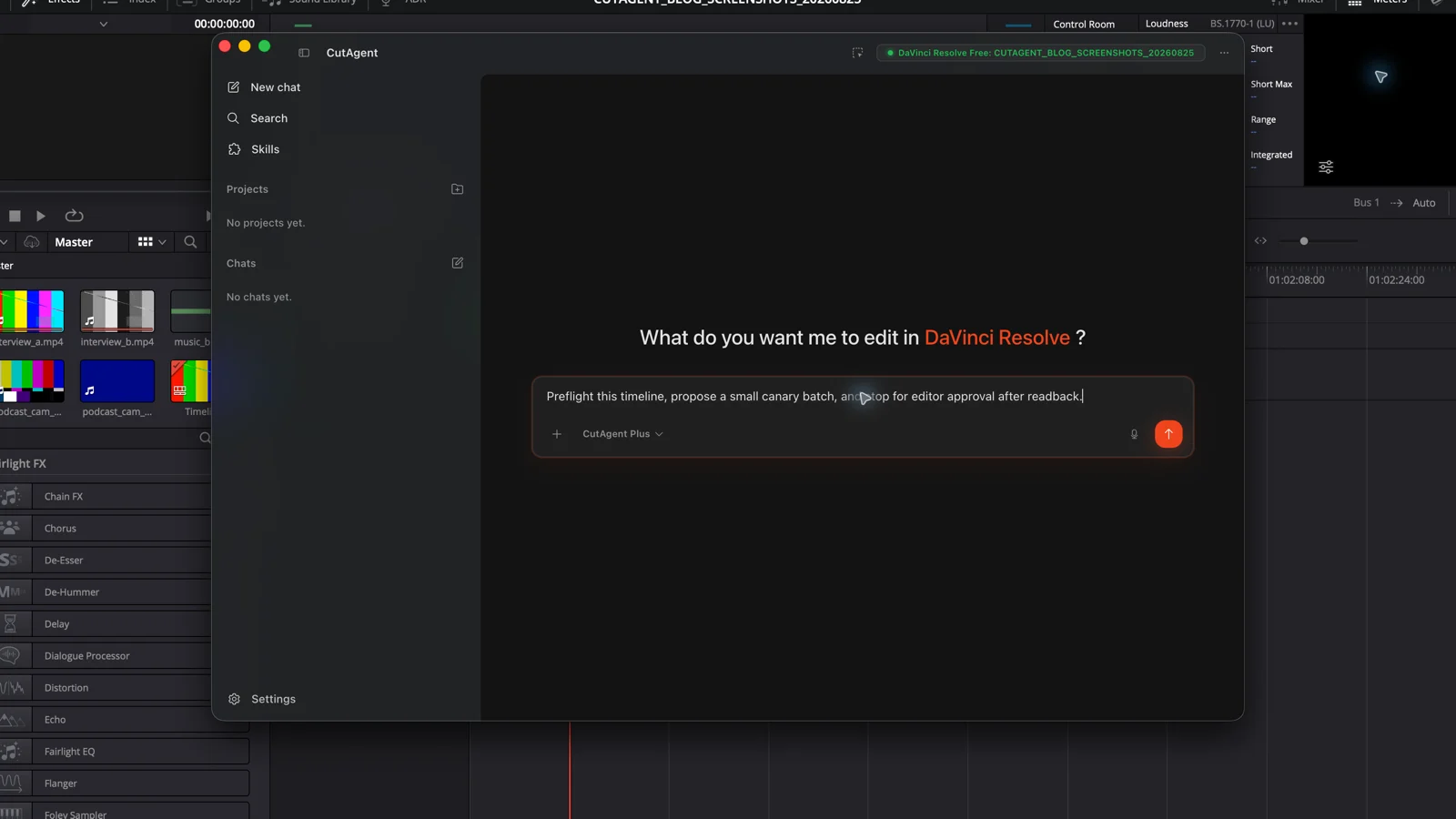
In CutAgent, the person-to-result path is editor → natural-language brief in the desktop app → supported local DaVinci Resolve operations → readback and review in DaVinci Resolve. CutAgent's public product page describes live edit context and verification summaries, but the editor still owns the promotion decision. Start with the read-only preflight above, then build the canary around one weekly workflow you can inspect completely.
Sources and further reading
- DaVinci Resolve 21 product overview - Blackmagic Design. Accessed August 25, 2026.
- DaVinci Resolve 21 New Features Guide - Blackmagic Design. Accessed August 25, 2026.
- Official DaVinci Resolve training - Blackmagic Design. Accessed August 25, 2026.
- DaVinci Resolve support center and current documentation - Blackmagic Design. Accessed August 25, 2026.
- CutAgent product overview and workflow features - CutAgent. Accessed August 25, 2026.
- CutAgent security and data use - CutAgent. Accessed August 25, 2026.